Your Nintendo Switch OLED is a beautiful piece of hardware, that vibrant 7-inch screen with its crisp colors and deeper blacks is legitimately stunning. But beauty comes with a price: vulnerability. The moment you take it out of the dock for handheld play, the OLED display becomes exposed to scratches, fingerprints, dust, and the occasional accidental drop. A Nintendo Switch OLED screen protector isn’t just an accessory: it’s insurance for one of your most valuable gaming devices. Whether you’re grinding through Zelda, running online tournaments, or just gaming casually on your commute, a good protector keeps that gorgeous display pristine without compromising responsiveness or visual clarity.
Key Takeaways
- A Nintendo Switch OLED screen protector is essential insurance for your device, as OLED panels sit closer to the surface than LCD screens and are vulnerable to permanent scratches from everyday contact with sand, dust, and pocket lint.
- Tempered glass protectors ($15–25) offer superior scratch resistance and authentic screen feel compared to plastic film alternatives, making them worth the investment to preserve your OLED’s vibrant colors and clarity.
- Quality features to prioritize include oleophobic (fingerprint-resistant) coatings, anti-glare protection, alignment guides for bubble-free installation, and edge protection that won’t interfere with docking.
- Proper application requires thorough screen cleaning with a microfiber cloth, a dust-free workspace, slow and deliberate positioning with pressure applied from center outward, and 24–48 hours for the adhesive to fully settle.
- Tempered glass protectors typically last 12–18 months before oleophobic coating degrades, while plastic protectors require replacement every 4–8 weeks for heavy users, making regular maintenance and timely replacement key to long-term device protection.
Why Your Nintendo Switch OLED Needs a Screen Protector
Understanding OLED Display Vulnerability
OLED panels operate differently from traditional LCD screens, and that difference matters when protecting them. OLED displays are made up of millions of tiny organic light-emitting diodes that produce their own light, no backlight needed. This tech gives you that gorgeous contrast and color accuracy that makes the Switch OLED such a pleasure to use, but it also means the panel itself sits closer to the surface than an LCD would.
The panel is covered by a thin layer of Gorilla Glass, but it’s not invincible. Gorilla Glass is scratch-resistant, not scratch-proof. Even minor contact with sand, pocket lint, or a rough gaming surface can create micro-scratches that accumulate over time. Once those scratches start catching light, they’re visible, and they’re permanent. A screen protector acts as a sacrificial layer, taking the hits your OLED would otherwise absorb.
Common Screen Damage Scenarios for Handheld Gamers
Let’s be honest about how we actually use our Switch OLED. Handheld mode is where the real wear happens. You’re probably gaming at odd angles, sitting on a couch, lying in bed, maybe playing while traveling. That’s when accidents happen.
Scratch scenarios: Dropping the console on hard surfaces, placing it on sandy beaches or dusty tables, tossing it into a backpack with keys or coins, these are the real-world situations that damage unprotected screens. Sand is especially brutal: it’s abrasive and gets trapped between the device and whatever surface it’s on.
Impact damage: While the Switch OLED is relatively durable, drops from desk height onto tile or concrete can crack an unprotected screen. A screen protector won’t prevent major cracks from a serious fall, but it can absorb some impact energy and prevent spider-web fractures that would otherwise require expensive repairs.
Daily wear from use: Just the friction from your thumb swiping across menus, constant contact with your hands, and regular play sessions all contribute to micro-damage. Over months of heavy use, an unprotected screen develops a dull haze that’s almost impossible to clean off, it’s actually surface damage, not dirt.
What to Look for in a Quality Nintendo Switch OLED Screen Protector
Tempered Glass vs. Plastic Film Protectors
This is the first real decision you’ll make, and it directly affects your gaming experience. Both options protect your screen, but they have different trade-offs.
Tempered glass protectors are the premium choice. They’re made from heat-treated glass that’s harder than standard glass, offering better scratch resistance and a more authentic screen feel. When you tap buttons in games, interact with menus, or use touch controls, tempered glass feels almost identical to the actual screen. The downside? They’re more expensive (usually $15–25 for quality options), thicker, and can affect the fit of dock compatibility or certain cases. They’re also more prone to shattering under direct impact, though they typically won’t damage the screen beneath if they break.
Plastic film protectors are thinner and cheaper ($5–12 range), but there’s a noticeable difference in feel and clarity. They can feel slightly rubbery or tacky, and your touch input might feel less responsive. Over time, plastic protectors can yellow or develop a slight haze, affecting screen clarity. But, they don’t interfere with docking, they’re easier to apply and remove, and they’re more forgiving if you make installation mistakes.
For most OLED players, tempered glass is worth the investment because the screen is too beautiful to view through a degraded plastic layer.
Key Features That Matter
Beyond the material itself, specific features separate mediocre protectors from ones that actually earn their spot on your console.
Anti-glare coating: This is underrated. It reduces reflections and glare in bright environments, making handheld play more comfortable during outdoor gaming or well-lit rooms. Some protectors market this as “matte finish,” but be cautious, aggressive anti-glare can noticeably reduce color vibrancy. You want subtle anti-glare that doesn’t compromise the OLED’s color punch.
Oleophobic coating: This is the fingerprint-resistant layer that keeps oils from your fingers from smudging the screen. Good oleophobic coatings maintain effectiveness for months: cheaper ones degrade within weeks and make the screen feel perpetually oily. This might seem minor, but it significantly impacts day-to-day usability.
Edge protection and design: The protector should extend slightly past the actual display area to protect the bezels without interfering with dock connections or trigger buttons. Poor edge design means the protector lifts during normal use or creates gaps where debris can sneak underneath.
Installation quality features: Look for protectors with alignment guides or application frames. These dramatically reduce the risk of bubbles or misalignment and are worth the couple extra dollars they usually cost. Tempered glass protectors for gaming consoles typically include these as standard.
Clarity and touch responsiveness: The protector shouldn’t noticeably dim your screen or introduce color shifting. Test videos from other users if available before buying. Touch input lag is rare with quality protectors but happens with some cheaper options, and it’s noticeable in fast-paced games.
Warranty and replacement policy: Quality manufacturers (like Spigen, amFilm, or ESR) typically offer replacements if the protector arrives damaged or if installation goes sideways. This peace of mind is worth factoring into your purchase decision.
Top Nintendo Switch OLED Screen Protectors to Consider
Premium Tempered Glass Options
Spigen Tempered Glass Protector is a solid default choice. It’s been a consistent favorite among Switch users since the original console launch. For the OLED model, Spigen offers a version specifically designed to fit the larger 7-inch display without interfering with dock or case compatibility. The build quality is reliable, the oleophobic coating holds up well, and it comes with an alignment guide. Around $12–15 depending on where you shop. The main criticism is that it’s not the thickest tempered glass available, so it’s slightly more prone to cracking under direct drops than premium-tier options, but for everyday protection, it’s excellent.
amFilm Tempered Glass Protector is heavier-duty than Spigen’s offering. It uses 9H hardness-rated glass (the standard for scratch resistance in the industry), includes two protectors in the pack so you have a backup, and comes with a detailed installation kit. It’s thicker than Spigen’s version, which makes it more durable but means some users report slightly tighter dock fit. Price point is $15–18. If you’re worried about drops and want maximum protection, amFilm is the go-to. The company stands behind its products with solid warranty support, which counts for something.
ESR Screen Protector for Nintendo Switch OLED leans into the premium end with better clarity and a smoother touch feel. ESR is known for making high-end protective gear (they make premium iPad cases, for instance), and that expertise shows. The glass is ultra-clear, the oleophobic coating is top-tier, and the touch responsiveness is noticeably better than budget options. It’s also more forgiving if dust particles get trapped during application, you can actually lift it and reapply without ruining the adhesive. Downside: it’s the most expensive of the three, usually $18–22. Worth it if you play fast-paced games where touch responsiveness matters, like Splatoon or fighting games.
Budget-Friendly Alternatives
Omoton Plastic Screen Protector Pack offers three protectors for around $8–10 total, so you’re looking at $3 per protector. Build quality is basic, but for the price, it’s respectable. The plastic is relatively clear, and installation is straightforward since plastic is forgiving. The trade-off is that the oleophobic coating is minimal and fades quickly, and the overall thickness means it can feel slightly spongy under your thumb during menu navigation. Good if you just want protection on a budget and plan to replace it every few months.
Supershieldz Plastic Film Protector sits in the mid-range plastic category at $6–9 per two-pack. It’s clearer than Omoton’s offering and has a better anti-glare coating if you play outdoors a lot. Installation is easy, and because it’s plastic, mistakes aren’t catastrophic. The main weakness is durability, the oleophobic coating starts degrading after 4–6 weeks of heavy use, so you’ll be reapplying protectors regularly. Best for casual players who don’t use their Switch daily.
Important note on off-brand tempered glass: Avoid ultra-cheap tempered glass protectors from unknown brands on Amazon. They’re often low-quality glass that doesn’t actually provide good protection, uses poor adhesive, and can develop yellow discoloration within weeks. Spending $3–5 less isn’t worth ending up with a protector that feels worse than nothing.
How to Apply a Screen Protector to Your Nintendo Switch OLED
Preparation and Cleaning Steps
Application quality determines whether your screen protector looks invisible or becomes a source of frustration. Take your time with prep, it’s genuinely the most important phase.
Step 1: Power off your Switch OLED completely. This isn’t strictly necessary, but it prevents accidental button presses while you’re working and keeps the screen dark, making dust and bubbles easier to spot.
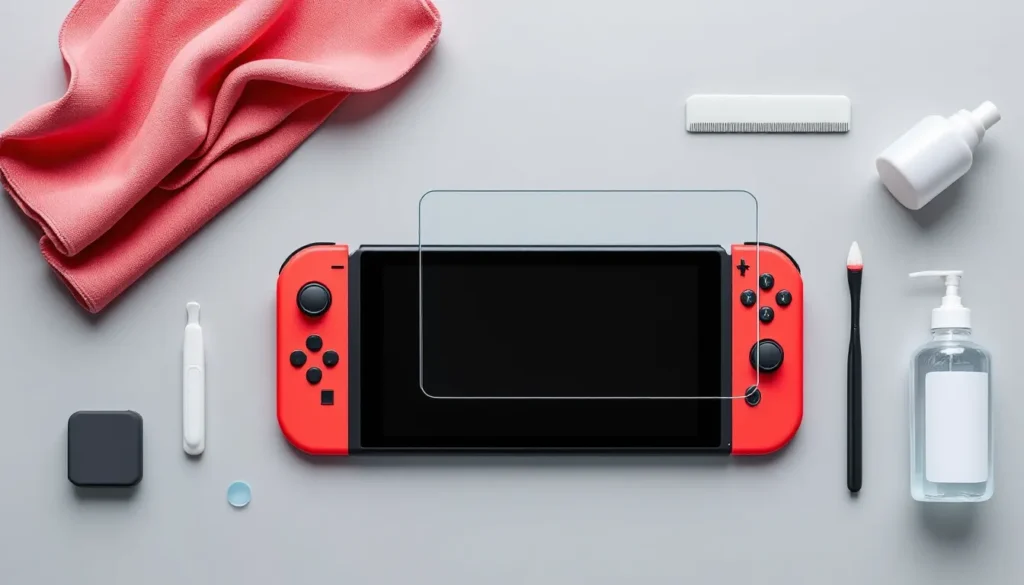
Step 2: Clean the display thoroughly. Use the microfiber cloth that comes with most quality protectors. If you don’t have one, grab a lens cleaning cloth or the inside of a cotton t-shirt, avoid paper towels, which are too abrasive. Wipe gently in circular motions to remove dust, fingerprints, and debris. Don’t press hard: you’re just removing surface contaminants.
Step 3: If there’s stubborn residue, use a small amount of isopropyl alcohol. Dampen a corner of your microfiber cloth (don’t soak it) and gently wipe the affected area. Let it dry completely before proceeding. This step is crucial if your Switch has been sitting in a case or has accumulated lint.
Step 4: Let your screen sit for a few minutes in a clean environment. Dust settles, moisture evaporates, and you can visually inspect for any remaining particles. This pause prevents you from sealing in dust beneath the protector.
Step 5: Prepare your workspace. Clear a table or flat surface and work in good lighting. If possible, avoid areas with active air movement (fans, open windows) that blow dust around. Some professionals even recommend slightly dampening the air by running water nearby to minimize airborne dust particles, though this is overkill for most home installations.
Installation Best Practices
Now for the actual application. This is where having a quality protector with an alignment guide makes a massive difference.
Step 1: Peel back the protective backing from the protector, not the adhesive side. Most quality protectors have two layers: a clear protective layer on top and the actual adhesive-side layer beneath. Some people confuse which side to remove first, it should be obvious from the packaging, but check the instructions if you’re unsure.
Step 2: Use the alignment frame or guide if your protector came with one. This is why amFilm and ESR are easier to apply, they include precision guides that center the protector perfectly on the screen. If you don’t have a guide, look at your Switch OLED’s bezels and mentally divide them into thirds. The protector should be centered with roughly equal bezel space on all sides.
Step 3: Lower the protector slowly and deliberately. Don’t drop it or slap it on. Start at one edge (usually the top) and gradually lower it while keeping it aligned. If you’re using a guide, this is already handled, but freehand application requires a steady hand. Go slow, you can always adjust it if it’s slightly off before you fully commit to the adhesion.
Step 4: Once it’s positioned, press gently from the center outward. Use your finger or a cloth to apply even pressure, working from the middle toward the edges. This pushes out air bubbles and ensures the adhesive makes full contact with the glass. Spend 20–30 seconds on this step: don’t rush it.
Step 5: Peel off the final protective layer and inspect. Check for bubbles, dust underneath, or misalignment. If the positioning is off by a millimeter or two, it’s usually fine and not worth the hassle of removing and reapplying. If there are visible bubbles or dust particles, read the troubleshooting section below.
Troubleshooting Common Application Issues
You did everything right and still ran into problems? These situations happen, and there are fixes.
Bubbles trapped beneath the protector: Small bubbles (pinhead-sized or smaller) often disappear on their own within 24–48 hours as the adhesive fully settles. For larger bubbles, try using a credit card or squeegee (many protector kits include one) to gently push the bubble toward the nearest edge. If that doesn’t work, the protector might have dust underneath, which requires removal and reapplication.
Dust particles visible under the protector: This is frustrating because once the adhesive sets, you can’t clean it without removing the protector. If dust is visible, carefully peel up the affected corner (or the entire protector if it’s widespread), use a piece of painter’s tape or lint roller to gently remove the dust, and re-apply. The adhesive on quality protectors usually survives one or two reapplications, but avoid excessive peeling.
Protector feels misaligned: If the edges are off-center but not drastically, it’s generally okay to leave it. The uneven bezel gap is rarely noticeable during actual gameplay. If alignment is significantly off (like a quarter-inch on one side), you can attempt to peel and reposition it, but there’s risk of adhesive degradation with repeated attempts. Most users find that leaving it slightly misaligned beats the stress of multiple removal-reapplication cycles.
Edges lifting or peeling away within hours: This usually indicates incomplete adhesion or trapped dust at the edges. Remove the protector immediately, inspect the edges of the screen for residue or dust, clean thoroughly, and reapply with extra attention to edge pressure. When you apply, spend extra time pressing the edges firmly to the screen.
Reduced touch responsiveness or feel after application: This is most common with thicker protectors or plastic films. It’s not a defect, it’s just the nature of having an additional layer between your finger and the actual screen. Give it 24–48 hours to adjust: your brain adapts to the new feel quickly. If responsiveness feels genuinely laggy (like a noticeable delay in menu navigation), the protector might be faulty, and you should consider a replacement. Finding the right gaming accessories involves testing quality components to ensure they enhance rather than hinder your experience.
Maintenance and Care for Maximum Longevity
Keeping Your Protector in Top Condition
A screen protector isn’t a “set and forget” accessory. It requires minimal but intentional care to maintain its appearance and functionality.
Fingerprint management: Even with oleophobic coating, fingerprints will accumulate during regular play. Clean your screen weekly with a microfiber cloth and gentle circular motions. If fingerprints feel sticky or stubborn, dampen the cloth very slightly, not wet, and wipe again. Don’t use harsh cleaners, glass spray, or anything abrasive. The oleophobic coating can degrade with improper cleaning, and you want it to last.
Dust prevention: Store your Switch in a protective case when you’re not using it. This reduces dust accumulation on the screen and extends the effective lifespan of your protector. Cases with microfiber lining are ideal, the lining prevents the screen from rubbing against coarser materials.
Avoid extreme heat or moisture: Don’t leave your Switch OLED in hot cars, direct sunlight for extended periods, or humid environments. Extreme temperatures can affect the adhesive, and moisture can seep under the edges and cause the protector to peel. If your Switch gets wet, dry the exterior completely before storing it.
Don’t use sharp objects near the screen: Styluses, pens, or your fingernails can puncture plastic protectors or create visible scratches on tempered glass. This seems obvious, but in the middle of a gaming session, it’s easy to absent-mindedly scratch at the screen. Be intentional about using a stylus only if the game requires it, and use your finger for everything else.
When to Replace Your Screen Protector
Protectors don’t last forever, and knowing when to swap it out prevents the frustration of a degraded or failing protector ruining your gaming experience.
For tempered glass: Quality tempered glass protectors typically last 12–18 months with regular use before the oleophobic coating significantly degrades or the glass develops visible haze. If your screen feels perpetually oily or fingerprints don’t wipe off cleanly anymore, the oleophobic coating is done. You can either buy a new protector or try specialized oleophobic re-coating products (though these are hit-or-miss in quality). If there are visible scratches or cracks in the glass, immediate replacement is necessary, a cracked protector won’t protect effectively and can deteriorate further.
For plastic film: Plan on replacement every 4–8 weeks if you’re a heavy user, or every 2–3 months for casual play. The material yellows, the adhesive weakens, and the touch feel degrades noticeably over time. Once it starts feeling tacky or looks discolored, remove it and apply a fresh protector.
Signs it’s time to replace: Visible yellowing or discoloration, significant haze or cloudiness that affects display clarity, edges consistently peeling away even though reapplication attempts, pronounced yellowing or greasiness that cleaning doesn’t resolve, or visible cracks and chips. Maintaining gaming hardware involves understanding when to upgrade components to keep your experience optimal.
Before replacing, consider if your Screen Protector needs cleaning vs. replacement: Sometimes what looks like a degraded protector is just built-up oil or film residue. Try a thorough cleaning with microfiber cloth and minimal isopropyl alcohol. If it looks and feels new after cleaning, you’ve just extended its life by a few weeks. If it’s genuinely damaged or discolored, replacement is the answer.
Keeping replacements on hand: Buy protectors in multi-packs if available, having a backup ready means you’re never forced to go without protection while waiting for a new one to arrive. It also lets you replace your protector on your schedule rather than rushing a replacement after damage occurs.
Conclusion
Your Nintendo Switch OLED screen deserves protection that doesn’t compromise what makes it special in the first place. The right screen protector is nearly invisible during actual gameplay, it just does its job while you enjoy those vibrant colors and sharp visuals.
Choosing between tempered glass and plastic film depends on your usage patterns and budget. For most players, a mid-range tempered glass protector like Spigen or amFilm hits the sweet spot between protection, clarity, and price. For competitive players or those who value touch precision, ESR’s premium option justifies the extra cost. Budget-conscious gamers can go with plastic, accepting that they’ll replace it more frequently.
Application isn’t complicated if you take your time with preparation and follow through deliberately. Most installation issues come from rushing the setup phase, clean the screen thoroughly, prepare a dust-free workspace, and use alignment guides if available. If you run into bubbles or dust, remember that small imperfections usually don’t affect gameplay, and attempting too many re-applications can damage the adhesive.
Once your protector is applied, basic maintenance, weekly cleaning, proper storage in a case, and attention to when it’s truly time for replacement, keeps it performing effectively. The small effort invested upfront in choosing the right protector and installing it correctly pays dividends in protecting an expensive piece of hardware.
Your Switch OLED is built to handle years of gaming. A quality screen protector ensures that gorgeous display stays pristine throughout that entire lifespan. Take the protection seriously, and you won’t regret it.