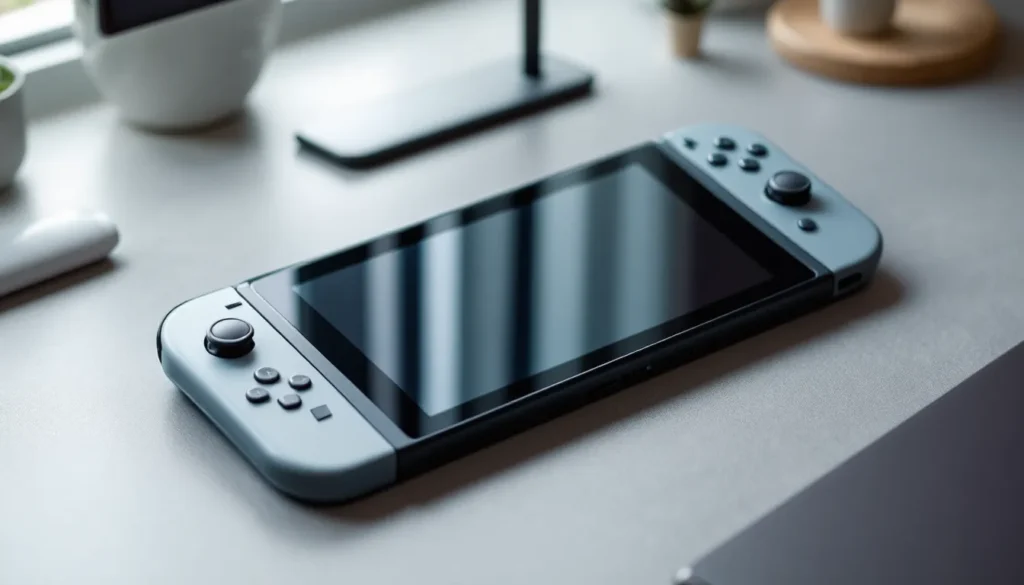
Joy-Con drift has been the bane of Nintendo Switch players since launch day, and in 2026, it’s still one of the most common headaches gamers face. Whether your controller drifts during competitive matches, experiences button lag, or simply won’t respond reliably, a faulty Joy-Con can kill your gaming experience fast. The good news? Nintendo Switch Joy-Con repair isn’t always expensive or complicated. You’ve got options: from quick software fixes and DIY replacements to Nintendo’s official repair service and trusted third-party shops. This guide covers everything a gamer needs to know about diagnosing, fixing, and preventing Joy-Con problems, so you can get back to actually playing instead of wrestling with your controller.
Key Takeaways
- Nintendo Switch Joy-Con repair has multiple affordable options—from free software fixes and DIY replacement ($26–$50) to professional services ($20–$65)—making repair significantly cheaper than buying new Joy-Cons.
- Joy-Con drift, the most common issue, is caused by internal wear on the analog stick module and can often be resolved through calibration, firmware updates, or simple alcohol-based cleaning before attempting repairs.
- DIY analog stick replacement is achievable for most users with basic tools and takes 30–45 minutes, making it the most cost-effective long-term solution after your first repair investment.
- Professional third-party repair shops offer better value than Nintendo’s official service, typically charging $20–$35 per Joy-Con with faster turnaround times (same-day to 3–5 days) while maintaining quality standards.
- Proper preventive care—including dry storage, regular firmware updates, avoiding excessive button mashing, and using protective grips—can significantly extend Joy-Con lifespan and delay problems by months or years.
Understanding Joy-Con Problems and Why They Happen
What Is Joy-Con Drift and How It Affects Gameplay
Joy-Con drift is exactly what it sounds like: your analog stick registers movement when you’re not touching it, or it drifts in unintended directions even when you’re trying to aim precisely. In a game like Zelda: Breath of the Wild, this means your character wanders off cliffs. In Fortnite or Splatoon, it means your aim goes haywire mid-gunfight. The culprit is almost always wear on the analog stick module’s internal potentiometer, a tiny sensor that tracks stick position.
Here’s why it happens: Joy-Con sticks use a resistive contact that degrades with heavy use. Dust, sweat, and just normal friction inside the mechanism eventually causes the electrical signal to become unreliable. Nintendo’s own repair data suggests drift can appear within months of normal play, though it’s more likely after hundreds of hours. The issue affects both the left and right Joy-Cons, though the left stick seems slightly more prone to drift in real-world reports.
The frustration level depends on the game. In turn-based titles like Pokémon, drift is annoying but manageable. In fast-paced action games or competitive titles, even minor drift can cost you the match.
Other Common Joy-Con Issues Beyond Drift
Drift gets all the attention, but it’s far from the only problem Joy-Cons develop. Button unresponsiveness, where A, B, X, Y, ZL, or ZR buttons require multiple presses or don’t register at all, is another widespread issue. The rubber domes inside Joy-Cons wear out over time, especially on buttons you hammer repeatedly during gameplay.
Connection problems also plague users: Joy-Cons randomly disconnecting or pairing to the wrong console mid-session. This is usually a Bluetooth issue rather than hardware failure, but it’s maddening all the same. Rumble malfunction is less common but still reported, the haptic feedback either stops working entirely or feels inconsistent.
Speaker issues pop up occasionally too. Some players report crackling or no sound from the Joy-Con speakers, which is particularly annoying if you’re using them for portable audio during handheld play. In rarer cases, players experience issues with the motion sensor or IR camera (on the right Joy-Con), making games like Ring Fit or Just Dance nearly unplayable.
Quick Troubleshooting Steps Before Attempting Repairs
Before you crack open your Joy-Con or ship it to Nintendo, try these steps first. You might save yourself money and time.
Calibration and Software Solutions
Recalibrating your Joy-Cons is the first move. Go to System Settings > Controllers and Sensors > Calibrate Control Sticks. Follow the on-screen prompts to have the console re-learn your stick’s neutral position. Sometimes drift is actually just a calibration issue, the console has lost track of where “center” is.
Update your console’s firmware if you haven’t already. Nintendo occasionally releases software patches that address controller issues. Check System Settings > System > System Update. A fresh OS might resolve connection problems or erratic input lag.
If you’re experiencing button issues, try clearing the button buffer by removing and reinserting the Joy-Con to the dock, then reconnecting them wirelessly. It sounds silly, but it works surprisingly often. For connection drops, unpair and re-pair your Joy-Cons: go to Controllers and Sensors > Disconnect Controllers, then reattach them to the Switch dock.
Some players report that resetting a problematic Joy-Con (holding the small reset button on the back for several seconds) clears up wireless and input issues. Use a paperclip or similar tool to press the reset button, then re-pair.
Cleaning and Basic Maintenance Techniques
Drift is often aggravated by dust or dried sweat inside the stick mechanism. Grab some isopropyl alcohol (90% or higher) and a cotton swab. Gently work the swab around the edge of the analog stick, wiggling it slightly to work the alcohol into the crevices. Don’t drench it, just dampen the swab. Do this for 30 seconds, then let it air dry for a couple of minutes.
For button issues, use the same approach: dampen a swab with isopropyl alcohol and work it around the button’s edges, pressing it repeatedly. This can clear out dust or debris that’s preventing proper contact.
Compressed air can also help, though be careful, the pressure might push dirt deeper into the Joy-Con if you’re not precise. Use short bursts and keep the can upright. Avoid using a regular vacuum cleaner near the Joy-Con: static discharge could damage the electronics.
For speaker crackling, try the same gentle alcohol-and-swab technique around the speaker grille. Dried sweat or residue often causes rattling or muffled audio.
After cleaning, let the Joy-Con sit for at least an hour before using it. Residual moisture could cause short circuits if you power it up too soon.
DIY Joy-Con Repair Methods You Can Try at Home
If software fixes and cleaning didn’t work, DIY repair is your next option. It’s cheaper than professional service and takes about 30–45 minutes for someone with basic tech skills. The most common repair, replacing the analog stick module, is straightforward with the right tools.
Tools and Materials You’ll Need
You’ll need a few specific items:
- Y00 or Y-tip screwdriver (Joy-Con screws are a tiny Y-shape, not Phillips or flathead)
- Replacement analog stick module (around $10–$20 per stick on Amazon or specialized retailers like iFixit or Nintendo Life)
- Plastic pry tool or spudger (to safely open the casing without scratching)
- Tweezers (to handle small ribbon cables)
- Small bowl or container (to keep screws organized)
- Isopropyl alcohol (to clean before reassembly)
- Anti-static wrist strap (optional but recommended to avoid accidentally frying the Joy-Con)
You don’t need professional-grade equipment. Most gamers have grabbed these supplies for under $30 total, especially if they already own a basic toolkit.
Step-by-Step Drift Stick Replacement
Step 1: Power down and disconnect. Turn off your Switch and remove the Joy-Con from the dock. Avoid any static buildup by touching something metal or grounded first.
Step 2: Open the Joy-Con casing. Flip the Joy-Con over and locate the two screws on the back. Use your Y00 screwdriver to remove them. Gently pry the casing apart using your plastic tool, work your way around the edges slowly. Don’t force it: there’s a ribbon cable connecting the front and back halves that you don’t want to tear.
Step 3: Disconnect the ribbon cables. Once open, you’ll see ribbon cables connecting the buttons, stick, and battery to the main board. Gently lift the small plastic tabs holding each ribbon in place, then slide the ribbons out. Take a photo with your phone to remember the orientation.
Step 4: Remove the old stick module. The analog stick module is soldered or glued to the main board. Some models allow you to unclip it: others require a soldering iron. Check a specific guide for your Joy-Con version (left vs. right, first-gen vs. revision). If it’s soldered, you’ll need basic soldering skills or a heat gun. Most newer Joy-Cons use clips, making replacement trivial.
Step 5: Install the replacement stick. Align the new module and snap it into place (or solder it, if needed). Make sure it’s seated flush against the board.
Step 6: Reassemble. Reconnect all ribbon cables in reverse order, aligning the plastic tabs. Close the casing and screw the back plate shut. Power it on and test immediately.
Pro tip: Buy replacement sticks in bulk. Once you’ve done one, you’re equipped to fix the next one in under 15 minutes.
Fixing Button Response and Other Hardware Issues
Button unresponsiveness usually requires more involved repair. If a button is sticking or requires excessive pressure, it’s either the rubber dome wearing out or debris under the contact. You can carefully disassemble the button area (more delicate than stick replacement) and clean the rubber dome with isopropyl alcohol.
For connection issues, the Bluetooth antenna or main board might be faulty, this is beyond DIY scope unless you have advanced soldering experience. Stick with the troubleshooting steps mentioned earlier.
Speaker crackling can sometimes be fixed by gentle cleaning around the speaker grille, but if the speaker itself is damaged, replacement requires desoldering, which demands professional-level skills.
Rumble malfunction is almost always internal to the haptic unit and not user-replaceable without advanced tools. If calibration and firmware updates don’t help, professional repair is your best bet. Most casual DIY repairs are limited to stick and button work. Anything requiring soldering or ribbon cable expertise is risky for beginners.
Professional Repair Options and When to Use Them
DIY isn’t for everyone. Some people lack the confidence, tools, or simply don’t want to risk breaking their Joy-Con further. Professional repair is a solid option, and in some cases, it’s your only choice.
Nintendo’s Official Repair Service
Nintendo offers Joy-Con repair through their official service, available in most regions. You can initiate a repair request through the Nintendo website or by contacting customer support. Here’s what to expect:
Cost: $35–$45 per Joy-Con for drift or button issues (as of 2026). Out-of-warranty repairs are generally affordable compared to buying new Joy-Cons ($70–$80 per pair).
Timeline: Turnaround is typically 7–10 business days from when they receive your controller, though shipping time adds another 3–5 days depending on your location.
Coverage: Nintendo’s warranty covers manufacturing defects (including drift, which they’ve acknowledged as a widespread issue) for one year from purchase. Even out of warranty, they often repair or replace Joy-Cons for a flat fee rather than refusing service.
Pros: Official parts, professional technicians, peace of mind. You know the repair is done right.
Cons: Slower turnaround, shipping hassle, and you’re without your Joy-Cons during the process. If you only have one pair, you’re benched.
Third-Party Repair Shops and Their Benefits
Local repair shops and mail-in services like iFixit Repair and other third-party specialists have carved out a solid niche. These outfits often specialize in game hardware repair and move faster than Nintendo.
Cost: Typically $20–$35 per Joy-Con, cheaper than Nintendo for simple fixes.
Timeline: Many local shops offer same-day or next-day service. Mail-in services are usually 3–5 days including shipping.
Parts quality: Reputable third-party shops use OEM (original equipment manufacturer) replacement modules or equivalent quality parts. Always check reviews before committing.
Pros: Fast turnaround, competitive pricing, flexibility (many shops offer evening or weekend hours), and you can often get same-day service locally. Some shops also offer customization options like different stick colors or special coatings.
Cons: Quality varies wildly depending on the shop. A bad repair can be worse than the original problem. Always research reviews on Google, Yelp, or reddit (check communities like r/NintendoSwitch) before choosing a third-party shop.
Red flags: If a shop can’t explain their repair process, won’t guarantee their work, or uses suspiciously cheap “aftermarket” sticks, walk away. You want shops that stand behind their repairs with a warranty (typically 30–90 days).
For online mail-in services, check their warranty policy and customer service responsiveness. A delayed response or refusal to help with post-repair issues is a bad sign. Many established third-party shops offer better warranties than you’d expect, sometimes including free repeat repairs if the same issue recurs.
Cost Comparison: DIY Versus Professional Repairs
Let’s break down the actual dollars-and-cents reality of your repair options.
DIY Repair Cost:
- Replacement analog stick module: $10–$20
- Y00 screwdriver (if you don’t own one): $8–$15
- Plastic pry tools: $5–$10 (or use what you have)
- Isopropyl alcohol: $3–$5
- Total for first repair: $26–$50 (depending on whether you already own tools)
- Cost per stick on repeat repairs: $10–$20 (you’ve already bought the tools)
Nintendo’s Official Repair:
- Per Joy-Con (in or out of warranty): $35–$45
- Shipping (if not local): $10–$20
- Total: $45–$65 per Joy-Con
Third-Party Repair Shop:
- Local same-day service: $20–$35
- Mail-in service: $20–$35 + $5–$10 shipping
- Total: $20–$45 per Joy-Con
The verdict: DIY is the cheapest long-term option if you’re confident in your tech skills. After your first repair, you’re set up to fix future issues for just the cost of replacement sticks. But, if you value your time, want a warranty, or feel uncomfortable opening electronics, third-party repair shops offer the best value, they’re faster and cheaper than Nintendo while still being professional.
Buying a replacement pair of Joy-Cons costs $70–$80, making any repair option cheaper than replacement unless your Joy-Cons are severely damaged beyond simple stick or button fixes. Even then, Nintendo sometimes offers a replacement program for chronic drift issues, so it’s worth asking before paying for repair.
Prevention: How to Extend Your Joy-Con Lifespan
The best repair is the one you never have to make. Joy-Cons aren’t indestructible, but proper care can delay problems significantly.
Best Practices for Daily Use and Storage
Use your Joy-Cons intentionally. Avoid excessive clicking or mashing buttons during gameplay. This isn’t about playing gently, it’s about understanding that Joy-Cons are precision tools, not battle axes. Competitive players who grind hundreds of hours will see faster wear than casual players.
Keep them dry. Sweat and moisture are death to electronics. If you’re gaming for extended sessions (especially with Ring Fit or active games), periodically wipe your hands and Joy-Cons with a microfiber cloth. Store them in a cool, dry place, not in a humid bathroom or sweaty gym bag.
Store properly between sessions. Use the official Joy-Con dock or cradle to store them, not loose on a shelf where they’ll roll around. If you use a carrying case, which you should for portability, choose one with proper padding. Dropping a Joy-Con from even 3 feet can damage internal components.
Avoid extreme temperatures. Don’t leave your Switch in a hot car or freezing garage. Heat degrades batteries and can weaken solder joints: cold can cause condensation when you bring the console back inside. Store at room temperature (68–72°F is ideal).
Charge regularly but don’t overcharge. Modern lithium batteries don’t have “memory effect” like old batteries, but constant trickle charging when already full does degrade them faster. Once your Joy-Cons are fully charged, don’t leave them plugged in for days. Charge them when the battery hits 20%, not when it hits 0%.
Update firmware consistently. Nintendo occasionally releases software patches that improve controller stability or Bluetooth reliability. Stay on the latest firmware.
Use a protective grip or case. Thicker grip cases distribute pressure more evenly on the sticks and protect against drops. Cases like the Satisfye ZenGrip (or similar alternatives) are popular for handheld play and reduce hand fatigue, which indirectly reduces aggressive stick input.
When to Replace Joy-Cons Entirely
Sometimes repair isn’t the right move. If your Joy-Cons are over 4 years old, have multiple simultaneous issues, or keep developing new problems after repair, replacement is more pragmatic than endless fixes.
Replace if: The casing is cracked or damaged beyond aesthetics (this can expose electronics to moisture), multiple buttons are failing, or the battery no longer holds a charge. If both drift AND button issues are present simultaneously, the Joy-Con has likely endured significant wear, and repair might buy you only a few more months.
Consider upgrading to Pro Controller: If you primarily play docked or on a TV, the Nintendo Switch Pro Controller is worth the investment. It’s more durable, has a better grip, and the sticks last longer under normal play. Many competitive players swear by it.
Buy quality third-party controllers: If you need Joy-Con functionality specifically, third-party options from reputable brands have become much more reliable in recent years. Check PCMag or gaming forums for current recommendations, quality varies, and you don’t want a knockoff.
Replacement Joy-Cons are cheaper than they were at launch (you can find deals during Nintendo Switch Black Friday sales or through GameStop), making full replacement more accessible than it used to be. If you’re considering replacement, wait for a sale, you’ll likely save $15–$25.
Conclusion
Joy-Con problems are frustrating, but they’re also fixable, and you’ve got more control over the situation than many gamers realize. Start with the free or cheap solutions: recalibration, firmware updates, and cleaning. If that doesn’t work, DIY repair is genuinely achievable for most people and costs under $50 for tools and parts. When DIY isn’t in the cards, third-party repair shops offer professional-quality fixes at fair prices with fast turnaround.
Nintendo’s official repair service exists as a fallback, and while it’s pricier and slower, it’s reliable and hassle-free if budget isn’t your primary concern.
Last, and this matters most, take care of your Joy-Cons before they develop problems. Proper storage, keeping them dry, and avoiding excessive wear extend their lifespan significantly. Drift and button issues aren’t inevitable: they’re just more likely after thousands of gaming hours. Most casual players can go 2–3 years without serious problems if they’re intentional about use and maintenance.
Whether you’re a competitive player who burns through controllers or a casual gamer who wants your Joy-Cons to last, you now know exactly what to do when problems show up. Get back to gaming.