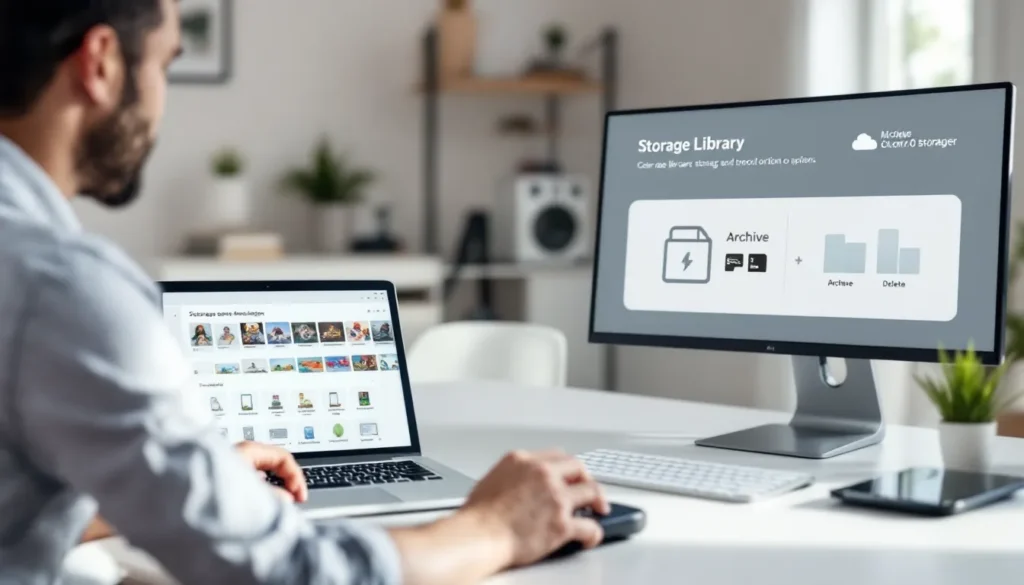
If you’re a Nintendo Switch gamer running low on storage, you’ve probably stared at your game library and wondered: should you archive or delete? It’s one of those moments where the right choice saves hours of redownloading, but the wrong one wastes precious time and data. The thing is, archive and delete aren’t the same, not even close. One keeps your save data safe and ready to go: the other wipes it clean. Understanding the difference between these two options is crucial for managing your Switch efficiently, especially now that digital libraries have exploded in size. This guide breaks down exactly what archive and delete do, when to use each one, and how to manage your storage like a pro.
Key Takeaways
- Archive vs. delete on Nintendo Switch differs fundamentally: archiving preserves save data while freeing 85-95% of storage, while deleting permanently removes both game and progress.
- Archiving is the safer default for most gamers who might replay titles later, allowing you to reinstall games quickly without losing achievements, rankings, or playtime data.
- Deletion should be reserved for games you’ve genuinely abandoned or completed with no replay value, since it permanently wipes all progress unless you have Nintendo Switch Online cloud backup enabled.
- A microSD card investment (256-512 GB) is the best long-term solution to eliminate storage pressure, letting you keep more games installed without relying on archiving or deletion.
- Enable Nintendo Switch Online cloud backup before deleting any games with significant save files, as it’s the only way to recover deleted progress if you change your mind later.
Understanding Archive and Delete on Nintendo Switch
What Does Archive Do?
Archiving a game on your Nintendo Switch removes the game data from your console but keeps your save file intact. Think of it as putting the game in storage, the software takes up almost no space afterward, but you can reinstall it whenever you want without losing your progress. Your game save data, achievements, and play time all stay on your console, waiting for you to download the game again.
When you archive, the game tile remains visible on your home screen with a small cloud icon, indicating it’s archived. Tapping the tile lets you redownload and reinstall the full game whenever you’re ready to play again. The redownload is usually faster than the initial install since your console knows exactly what it needs to retrieve. This approach is perfect for games you want to keep in your library but don’t play regularly.
What Does Delete Do?
Deleting a game permanently removes both the game data AND your save file from your console. Once it’s gone, it’s truly gone, unless you’re willing to completely wipe your console and recover from a backup, which most gamers won’t bother doing. The game tile disappears from your home screen entirely, freeing up maximum storage space.
Deletion is the nuclear option when you’re certain you won’t return to a game anytime soon. Some players delete games they’ve 100% completed and have no interest in replaying, or titles they just didn’t enjoy. It’s a clean break that frees up the most space, but the trade-off is losing all your progress permanently.
Key Differences at a Glance
Archive: Keeps save data, removes game data, minimal storage freed, fast reinstall possible, game tile visible but unavailable.
Delete: Removes everything, maximum storage freed, save data lost forever, game tile disappears entirely, reinstalling requires redownloading from scratch.
The core difference boils down to this: archive is reversible (in terms of progress) and space-efficient: delete is permanent and space-maximizing. Your choice depends entirely on whether you value storage space or the ability to jump back into a game with your progress intact.
How to Archive Games on Nintendo Switch
Step-by-Step Archiving Process
Archiving on the Nintendo Switch is straightforward and takes less than a minute. Here’s exactly how to do it:
-
Navigate to System Settings. Press the X button on your controller while on the home screen, then scroll down and select “System Settings.”
-
Find Data Management. Scroll down to “Data Management” and select it.
-
Choose Manage Software. Select “Manage Software” from the submenu. You’ll see a list of all your installed games.
-
Select the Game to Archive. Find the game you want to archive and click on it. The console will display information about the game, including its size.
-
Select Archive Software. A menu will appear with options. Click “Archive Software” to begin the process.
-
Confirm Your Choice. The Switch will ask for confirmation. Select “Archive” to proceed, and you’re done.
That’s it. The game data is now archived, and your save files remain safely on your console. Archiving doesn’t take long, usually instantaneous, and you’ll immediately see your available storage increase. The amount depends on the game size: larger titles like The Legend of Zelda: Breath of the Wild (13.4 GB) free up significantly more space than smaller indies.
Recovery and Reinstalling Archived Games
When you’re ready to play an archived game again, reinstalling is just as simple. Tap the archived game’s tile on your home screen (it’ll have a cloud icon). The Switch will prompt you to redownload the game. Select “Download” or “Install,” and your console will grab the game data from Nintendo’s servers.
Redownload speeds depend on your internet connection, but since the game is already backed up on Nintendo’s servers, installation is usually faster than the initial download. Your save data will be waiting exactly where you left it, no progress lost, no need to restart. This is why archiving is so valuable for games you rotate through or play seasonally.
How to Delete Games on Nintendo Switch
Permanent Deletion Steps
Deleting a game works similarly to archiving, but with permanent consequences. Here’s the process:
-
Open System Settings. Press X on the home screen, then navigate to “System Settings.”
-
Go to Data Management. Select “Data Management” from the menu.
-
Select Manage Software. Click “Manage Software” to see your full library.
-
Choose Your Game. Find and select the game you want to delete.
-
Delete Software. Instead of selecting “Archive Software,” this time click “Delete Software.” A confirmation prompt will appear.
-
Confirm Deletion. The Switch will warn you that this action cannot be undone. Select “Delete” to proceed.
The game and all associated data vanish immediately. Your storage space jumps up, but so does the risk of regretting the decision. There’s no undo button here, once you hit that final delete, it’s gone. Freeing up 50+ GB from a single triple-A title is tempting when you’re storage-strapped, but make sure you’re actually done with that game first.
What Happens to Game Save Data?
Here’s where gamers often trip up: deleting a game also deletes its save data. Those 200 hours in Elden Ring? Gone. Your custom character in Animal Crossing: New Horizons? Wiped. The only exceptions are games with cloud backup enabled through Nintendo Switch Online, but even then, recovery requires knowing your backup exists and having an active NSO subscription.
If you’re a completionist or play games methodically, losing save data is devastating. Some players have deleted games only to realize weeks later they wanted to try a New Game+ run or explore postgame content. Before you hit delete, ask yourself: “Will I ever want to replay this game from the beginning?” If the answer is yes, archive instead. Your future self will thank you.
When to Archive Your Games
Best Scenarios for Archiving
Archiving shines in specific situations where you want to preserve progress but reclaim space. Here are the best use cases:
Seasonal or Rotational Games. Games you play on rotation, like Mario Kart 8 Deluxe during competitive seasons or Pokemon Scarlet/Violet when new DLC drops, are perfect archive candidates. You’ll want your save data intact when you jump back in, and archiving lets you keep your rank, team, or Pokedex progress.
Story Games You’ve Completed. Finished Hades but might replay it in six months? Archive it. You preserve your completed file, character unlocks, and all meta-progression, but free up 20+ GB in the meantime. When the urge to replay hits, reinstalling takes minutes.
Space-Hungry Games You Play Sporadically. The Legend of Zelda: Tears of the Kingdom, Baldur’s Gate 3, and Starfield are excellent candidates. These massive titles consume 30-50 GB, but if you’re not actively playing them, archiving is a smart middle ground. You’re not deleting your 50-hour save file: you’re just optimizing storage.
Multiplayer Games with Seasonal Content. Games like Splatoon 3, Fortnite, and Apex Legends often rotate content seasonally. Archive when you’re not engaged, then reinstall when a new season launches. Your cosmetics, rank, and battle pass progress survive the archive cycle.
Games You’re Testing Out. Tried a new indie title, loved it, but want to take a break? Archive it now, reinstall it later when you’re ready to dive back in. No progress lost, and you’ve made room for other games in the meantime.
When to Delete Your Games
Best Scenarios for Deletion
Deletion is for situations where you’re genuinely done with a game and need maximum storage recovery. Here’s when it makes sense:
Games You’ve Permanently Abandoned. That unfinished fighting game you bounced off? The turn-based RPG that didn’t click? If you’ve given it a fair shot and know you’ll never go back, delete it. Holding onto games out of obligation wastes storage. Be honest: will you ever play this again? If not, let it go.
One-Time Story Experiences with No Replay Value. Some narrative-heavy games, especially those designed for a single playthrough, don’t offer reasons to restart. If a story game’s only value was its first run and you’ve completed it, deletion is reasonable. Your saves sit there taking up space for no practical benefit.
Games That Feel Dated or Frustrating. Picked up a game thinking you’d love it, but it aged poorly or the gameplay is tedious? Holding onto it is just clutter. Delete and move on. The storage space and mental decluttering combined make it worthwhile.
Emergency Storage Situations. You’re a day away from a major release you’re hyped for, but your Switch is full. If you need immediate space and can’t wait for reinstalls, deleting games you’re confident you won’t replay soon is your fastest solution. Just triple-check your decision first.
When Upgrading Your Storage Permanently. Grabbing a larger microSD card? That’s the perfect time to delete unnecessary games rather than archiving them. Start fresh with only the games you actively play or plan to play soon.
Storage Management Tips for Switch Gamers
Maximizing Internal Storage
The Nintendo Switch has 32 GB of internal storage, but Nintendo reserves about 3-5 GB for the system itself. In reality, you’re working with roughly 27-29 GB of usable space. That’s tight, especially if you’re a digital-first gamer. Here’s how to make it count:
Prioritize Your Most-Played Games. Install only the titles you genuinely rotate through regularly. If you’re jumping between Smash Bros. Ultimate, Mario Kart, and Pokemon, keep those installed. Occasional games? Archive or skip entirely.
Monitor Game Sizes Before Downloading. Not all games are created equal. Pokemon Legends: Arceus is 5.5 GB, while Baldur’s Gate 3 towers at 148 GB on some platforms (though the Switch version is optimized lower). Check sizes before committing install space. The eShop shows download size before purchase, use that information.
Delete App Caches Periodically. This is a lesser-known trick: games cache data over time. Go to System Settings > Storage > Manage Software and look at individual game sizes. Sometimes a 10 GB game has 2-3 GB of cached data. Archiving and reinstalling clears this automatically, which is another hidden benefit of archiving larger titles.
Using microSD Cards Effectively
The real solution to Switch storage isn’t internal space, it’s a microSD card. Nintendo officially supports cards up to 2 TB (though 256-512 GB is practical for most gamers). A quality microSD card runs $20-60 depending on capacity and speed, and it’s the single best investment for a Switch owner.
Choose the Right Capacity. A 128 GB card holds roughly 100 indie games or 10-15 AAA titles comfortably. If you’re a heavy digital buyer, jump to 256 GB or 512 GB. The cost-per-GB is often better at higher capacities anyway, and you’ll thank yourself later when you’re not constantly archiving and deleting.
Prioritize Speed Class. Look for cards rated U3 or V30 (video speed class 30). These handle game transfers faster and have better sustained write speeds, which matters for large downloads. Don’t cheap out on ancient microSD cards, a $15 difference for faster performance is worth it.
Install Games to the microSD Card, Not Internal Storage. Once you’ve inserted the microSD, the Switch prioritizes it for new downloads automatically. Let it. Keep your internal storage for system software and critical saves. The microSD card handles the bulk of your library.
Back Up Important Data Periodically. While not directly related to archive vs. delete, having a microSD card backup habit protects against console failure. If your Switch dies and you haven’t backed up saves, years of progress vanish. Cloud backup through Nintendo Switch Online is your safety net, seriously consider the subscription if you’re invested in multiple games.
Common Questions and Troubleshooting
Can You Recover Deleted Games?
Once a game is deleted, it’s gone from your console. But, you can redownload it from the eShop at any time, it’s treated like a new purchase from your account’s perspective. You won’t pay again: your account has a record of the purchase, and redownloading is free.
But here’s the catch: your save data cannot be recovered unless you had cloud backup enabled through Nintendo Switch Online. If you deleted a game without NSO cloud backup active, that save is permanently gone. If you did have NSO and cloud backup running, you can potentially recover the save by redownloading the game and letting the cloud sync restore your progress. This is why NSO membership is worth considering if you’re worried about losing hours of playtime.
IGN and other gaming outlets frequently remind players to enable cloud backup for precisely this reason. One deleted game without a backup is enough to make any gamer regret not subscribing.
How Much Storage Does Archiving Save?
Archiving saves the vast majority of a game’s file size. The exact amount varies, but you’re typically looking at freeing 80-95% of the game’s original size. A 50 GB game becomes roughly 3-5 GB (save data and metadata). A 15 GB indie becomes less than 1 GB archived.
The precise numbers depend on the game, larger, more complex games with bigger save files might retain slightly more data when archived, but the difference is negligible. The takeaway: archiving a 30 GB game frees up roughly 28-29 GB, which is almost as good as deleting it. The remaining 1-2 GB is your save data and game metadata, which survives the archive.
If maximum storage recovery is your goal, deletion frees up 100%, while archiving frees up 85-95%. For most gamers choosing between archive and delete, that 5-10 GB difference is worth keeping your progress intact. But, if you’re in genuine storage crisis mode and need every megabyte, deletion is the only option.
Conclusion
The archive vs. delete decision comes down to one question: do you want your save data back if you reinstall? Archive if yes: delete if no. It’s that simple, but the implications ripple through your entire Switch library management strategy.
Archiving is the safer, smarter default for most gamers. You’re never truly done with a game, tastes change, new content launches, and replay urges strike unexpectedly. Keeping your progress intact while reclaiming 85-95% of storage space is the best of both worlds. Combined with a decent microSD card, archiving lets you maintain a massive library without ever hitting the storage ceiling.
Deletion is the final answer only when you’re absolutely certain. It’s for games that didn’t resonate, stories you’ve experienced and won’t relive, and titles taking up space that could go to games you’re actually excited about. The freedom that comes from deleting unnecessary clutter sometimes outweighs the safety of keeping a save file around.
In 2026, with game sizes ballooning and digital libraries expanding, smart storage management separates casual players from organized ones. Start with archiving for anything you’re uncertain about. Delete only the games you’re genuinely finished with. And seriously, grab a microSD card if you haven’t already, it eliminates the entire archive-vs.-delete dilemma by giving you room for everything.