Your Nintendo Switch is frozen mid-game, or maybe it’s running slower than usual. Before you panic and assume the worst, there’s a good chance a simple restart will fix it. Whether you’re dealing with a laggy menu, an unresponsive app, or just want to clear the system’s RAM, knowing how to restart your Nintendo Switch is essential maintenance that every gamer should have in their toolkit. This guide walks you through three different restart methods, from the quickest soft reset to the nuclear option of a factory reset, plus troubleshooting steps for when things don’t go smoothly. By the end, you’ll be equipped to handle almost any restart scenario without losing your game data or sanity.
Key Takeaways
- A soft reset is the quickest way to restart your Nintendo Switch—just hold the Power button for 3-5 seconds, select Restart, and confirm within 30-40 seconds to fix lag and minor glitches.
- When a soft reset doesn’t work, use a hard reset by holding the Power button for 12-15 seconds to force a shutdown; this clears stuck processes without deleting saved data.
- Perform a factory reset only as a last resort for persistent software issues, as it wipes all downloaded games, user accounts, and local saves—but cloud saves backed up through Nintendo Switch Online can be restored afterward.
- Make restarting a weekly habit if you’re a casual gamer, or every few days for heavy players, to prevent memory bloat and keep your Switch running smoothly without any data loss risk.
- Common restart issues like frozen screens or unresponsive power buttons can usually be solved by force-closing the active app, trying a hard reset, or checking your network connection before contacting support.
Why You Might Need To Restart Your Nintendo Switch
Your Switch won’t always announce that it needs a restart, but there are clear signs you should listen for. Games might stutter or crash, the home menu could lag when switching between apps, or online connectivity might drop unexpectedly. Performance degradation is the most common culprit, over time, your console accumulates background processes and cached data that bog down the system.
Other reasons to restart include installing major software updates, resolving persistent connection issues with docked mode or handheld play, or preparing the console for long periods of storage. If you’ve just finished an intense gaming session on a demanding title like The Legend of Zelda: Tears of the Kingdom or Elden Ring, a quick restart clears temporary memory and keeps your Switch running smoothly for the next round.
Network glitches are another frequent trigger. If your Switch suddenly can’t connect to your Wi-Fi, can’t access the eShop, or keeps dropping from online multiplayer matches, a restart often solves the problem faster than troubleshooting your router. The same applies if you notice controllers acting weird, delayed input, unresponsive buttons, or drift issues sometimes stem from software rather than hardware, and a restart might buy you time before a professional repair is needed.
Another less obvious reason: after installing system updates, some games or features might behave oddly until the console fully initializes. A restart ensures all changes take effect properly and that nothing’s stuck in a half-loaded state.
Standard Soft Reset: The Quick Fix Method
A soft reset is your first line of defense and takes less than a minute. It closes all running applications and clears temporary data from RAM without touching your saved games or system files. This is the restart you’ll use 90% of the time, and it’s why everyone should know this method by heart.
Step-By-Step Soft Reset Instructions
Here’s the process in simple steps:
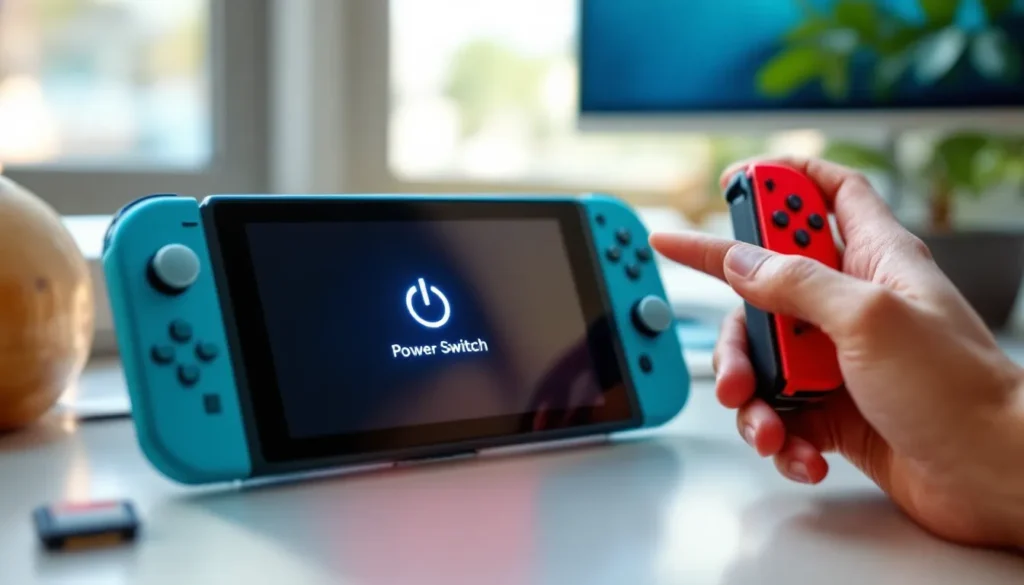
- Press and hold the Power button on the top-left of your Switch for 3-5 seconds.
- A menu will appear with options: “Power Off,” “Restart,” and “Sleep Mode.”
- Select “Restart” using the D-Pad or Joy-Con.
- Confirm by pressing A. Your Switch will shut down completely, then power back up automatically.
- Wait for the system to fully load, you’ll see the Nintendo logo, then the home menu.
The entire process takes about 30-40 seconds from button press to being ready to play. On the standard and OLED models, the Power button is in the same location. If you’re using a Switch Lite, the button is also top-left, just in a slightly different position due to the smaller form factor.
One common mistake: some players hold the Power button for too long thinking they need a “hard reset.” Holding it for 3-5 seconds triggers the soft restart menu: holding it for 10+ seconds forces a hard power-off, which is different and more aggressive (more on that below).
When To Use A Soft Reset
Use a soft reset whenever you notice lag, slowdowns, or minor glitches. It’s also ideal after installing updates, when switching between very demanding games, or if a single app isn’t responding. If you’re struggling with online performance, lag spikes in Mario Kart 8 Deluxe or connection drops in Splatoon 3, a soft reset often helps because it clears network buffers and re-establishes your connection cleanly.
Soft resets are also safe to use daily if you’re a heavy gamer. There’s no risk of data loss, and the system is designed to handle frequent restarts without degradation. Think of it like restarting your PC after a long gaming session, it’s just good hygiene.
If a soft reset doesn’t fix your problem after one attempt, wait 30 seconds and try again. If the issue persists after a second attempt, you might need to escalate to a hard reset or investigate deeper issues with specific games or your network.
Hard Reset: The Deep Restart Option
When a soft reset doesn’t cut it, a hard reset is your next move. This method forces the Switch to shut down immediately without the graceful shutdown sequence. It’s more aggressive but still safe, it won’t delete data or cause permanent damage. Use this when the console is completely frozen, unresponsive to button presses, or stuck on a black screen.
What Happens During A Hard Reset
A hard reset bypasses the normal shutdown process and forces the system to stop everything instantly, then power back on. Your active game will be interrupted, any unsaved progress will be lost, but your save data stored on the system remains intact. The Switch stores game saves separately from active memory, so you won’t lose your 100+ hour Xenoblade Chronicles 3 playthrough, even if you hard reset mid-battle.
The key difference from a soft reset is that a hard reset forces an immediate power-off without closing applications gracefully. This clears any stuck processes or corrupted memory states that might be causing freezing or glitching. It’s essentially pulling the battery out and putting it back in, crude but effective.
Hard resets also help if your console gets into a weird state where the Power button menu won’t appear. This sometimes happens if the system software encounters an error, and a hard reset forces recovery without needing to navigate menus.
How To Perform A Hard Reset
- Locate the Power button on the top-left of your Switch.
- Press and hold it for at least 12-15 seconds. Hold it longer than you would for a soft reset, aim for a full count of “one Mississippi, two Mississippi…” up to 12-15.
- The screen will go black as the system shuts down forcefully.
- Release the button and wait 5-10 seconds.
- Press the Power button once to turn it back on.
- The Nintendo logo and startup sequence will appear. This might take slightly longer than normal, that’s fine.
Your Switch will boot normally after a hard reset. Check the home menu to confirm everything loaded properly. If your system is still frozen or unresponsive after a hard reset, the problem might be hardware-related or a corrupted file, and you may need to consider a factory reset or contact Nintendo support.
One note: if you’re docked, you can also hold the Power button on the back of the dock (if your dock model has one), but the top-left Power button on the console itself is more reliable. Make sure you’re not accidentally holding the Volume buttons, the Switch doesn’t have dedicated volume controls on the top bezel, but it’s easy to fumble in a stressful moment.
Factory Reset: Nuclear Option For Major Issues
A factory reset wipes everything on your Switch and returns it to fresh-out-of-the-box condition. Use this only when you’re dealing with persistent problems that soft and hard resets can’t fix, or if you’re preparing to sell or give away your console. This is destructive, so make sure you understand the consequences before you proceed.
What You Should Know Before Factory Resetting
A factory reset deletes:
- All downloaded games
- Save files for locally stored games (unless they’re backed up to the cloud)
- User accounts on the console
- Wi-Fi passwords and paired controllers
- System settings, parental controls, and custom themes
It does not delete:
- Game saves for games stored on cartridges (physical games retain their data)
- Cloud save data if you have a Nintendo Switch Online subscription (you can restore this after resetting)
Before factory resetting, back up your cloud saves through Nintendo Switch Online if you’re subscribed. Go to System Settings → Data Management → Save Data → Save Data Cloud Backup, and manually upload your critical games. This is crucial, if you don’t have Switch Online and you’ve been relying solely on local storage, a factory reset will permanently erase those saves.
For downloaded games, you won’t lose them permanently as long as you remember your Nintendo Account credentials. After the reset, you can log in and re-download them from the eShop. But, this takes time, so plan accordingly if you have a large library.
Factory resets solve persistent software issues like corrupted system files, constant crashes, or system-wide instability. If a specific game is causing problems, uninstalling and reinstalling that game is safer than nuking everything. The same applies if you’re having persistent online issues, try contacting your ISP or checking your router before burning it all down.
Step-By-Step Factory Reset Process
- Press Home on your Joy-Con or Pro Controller to reach the home menu.
- Open System Settings (gear icon in the bottom-left of the home screen).
- Scroll down to “System” and select it.
- Scroll down and select “Formatting Options.”
- Choose “Initialize Console.”
- Read the warning that appears. It will list everything that will be deleted.
- Select “Initialize” to confirm. You’ll be asked one more time, confirm again.
- The system will begin the reset process. This takes 5-15 minutes depending on how much data is on your console.
- Once complete, your Switch will restart and show the initial setup screen, just like a new console.
Don’t interrupt this process. Keep your console plugged in, don’t force a shutdown, and don’t remove the microSD card if you have one installed (the console will wipe it separately if needed).
After the reset, you’ll go through the initial setup, language selection, connecting to Wi-Fi, linking your Nintendo Account. Once you’re logged back in, you can restore cloud saves if you have Switch Online. Navigate to System Settings → Data Management → Save Data → Restore Save Data, and re-download your saves from the cloud.
This entire process is a last resort. If you’re resetting because of performance issues, try the soft and hard reset methods first. Contact Game Rant or similar gaming support communities if you’re unsure whether a factory reset is necessary, sometimes the answer is simpler than a complete wipe.
Troubleshooting Common Restart Problems
Not every restart goes smoothly. Sometimes the console acts weird during the process, or something goes wrong afterward. Here’s how to handle the most common hiccups.
Switch Won’t Turn Off Or Restart
If your Switch won’t respond to the Power button menu or just refuses to shut down, you’re dealing with a system lockup. This sometimes happens after a particularly demanding gaming session or if an app has crashed hard.
First, try force-closing the active app. If you’re in a game, press Home on your Joy-Con, then press the X button on the game tile you’re in. This closes the app without restarting the entire system. Often, this alone is enough to restore responsiveness.
If that doesn’t work and the Power button still won’t bring up the menu, go straight to a hard reset. Hold the Power button for 12-15 seconds as described earlier. If the console still won’t power off, make sure you’re holding the right button, the Power button is on the top-left bezel, easy to miss if you’re panicking.
In rare cases where even a hard reset doesn’t work, your console might be experiencing a critical hardware failure. If the screen is completely black and unresponsive even after multiple hard reset attempts, contact Nintendo support or visit an authorized repair center. Don’t try multiple consecutive hard resets in quick succession, wait at least 30 seconds between attempts to let the system cool down.
Frozen Screen During Restart
Sometimes you’ll initiate a restart, the screen goes black, and then… nothing. The console sits on a black screen for longer than expected, and you’re not sure if it’s stuck or just taking a while.
First, be patient. A restart can take 30-60 seconds total, especially after system updates or if your console has a full storage. Count to 90 seconds before assuming something’s wrong.
If it’s still frozen after 90 seconds, try a hard reset. Hold the Power button for 12-15 seconds. If the screen flickers or shows any signs of life, the system is still responsive and a hard reset should bring it back.
If a hard reset also results in a frozen black screen, the issue might be a corrupted system file or, more rarely, a hardware problem with the display connector. Try connecting your Switch to a dock and a TV. If you see the display on the TV but not on the handheld screen, it’s a display connector issue, not a software problem. If the TV shows nothing either, it’s likely a deeper system issue, and you’ll need to contact Nintendo for repairs.
Restart Causing Game Or Save Data Issues
This is rare, but occasionally after a restart, players notice their save files seem corrupted, a game won’t launch, or there’s an error message related to game data.
First, don’t panic. A restart itself won’t corrupt saves, saves are stored separately from the running system memory. If you’re seeing save errors immediately after a restart, the issue likely existed beforehand, and the restart just exposed it.
If a game won’t launch after a restart, try this: delete the game’s saved data (not the game itself) through System Settings → Data Management → Manage Save Data. This removes local cache and temporary files. Then launch the game again, it will take a moment to rebuild its local files, but this often fixes launch errors.
For corrupted save data, check if you have a cloud backup through Nintendo Switch Online. If you do, delete the local save and restore from the cloud. Go to System Settings → Data Management → Save Data → Save Data Cloud Backup. You should see an option to download and restore saves from the cloud.
If you don’t have Switch Online and a save is truly corrupted, unfortunately, it’s likely lost. This is why backing up important saves to the cloud is essential if you’re a heavy gamer. You can start a new playthrough or move on to another title.
Best Practices For Regular Maintenance
Restarting your Switch isn’t something you should wait until problems occur, regular maintenance keeps it running smoothly and extends its lifespan. Here’s how to keep your console in peak condition.
Restart once a week if you’re a casual gamer, or every few days if you’re putting in serious hours. This prevents memory bloat and keeps the system responsive. It takes 40 seconds and requires no setup, so there’s no reason not to make it a habit.
When you’re done gaming, put your Switch in Sleep Mode rather than leaving it running or powering it off. Sleep Mode is a middle ground, it keeps the system in a low-power state, doesn’t consume much battery, and apps can continue downloading or updating in the background. Every few weeks, pair that Sleep Mode usage with a full restart to keep things fresh.
Update your system software immediately when prompted. Nintendo releases updates that include security patches, stability improvements, and bug fixes. Delaying updates increases the risk of encountering the problems that restart methods are designed to fix. After installing a major update, restart your Switch, it helps ensure all changes are properly applied.
For docked play, ensure your dock and console have proper ventilation. A poorly ventilated console can overheat, which sometimes leads to unexpected shutdowns or slowdowns. If you notice your Switch getting hot during handheld play, take a break. The system has thermal safeguards that throttle performance or shut down to prevent hardware damage, but consistent overheating shortens component lifespan.
Keep your microSD card (if you use one) in good condition. A failing microSD can cause game stuttering or crashes that mimic software problems. If you’re experiencing frequent issues with downloaded games but cartridge games run fine, your microSD might be the culprit. You can test this by temporarily removing it and playing a downloaded game from internal storage.
For controllers, restart your Switch after major controller firmware updates, which you can check in System Settings → Controllers and Sensors → Update Controllers. Even if no update is available, this menu lets you re-sync controllers if they’re acting unresponsive. A fresh restart after re-syncing ensures the connection is stable.
Finally, if you’re preparing for competitive play, whether that’s Super Smash Bros. Ultimate tournaments or Splatoon 3 ranked matches, restart your Switch 30 minutes before competing. This ensures maximum stability, clears any background processes that might affect performance, and gives your connection time to stabilize. Pro players know that a properly maintained console is a competitive advantage.
You can find more detailed Nintendo Switch maintenance tips and guides across the Nintendo Switch Archives to stay updated on the latest console care recommendations. For hardware issues or if you’re planning significant repairs, the Ultimate Guide to Nintendo Switch Pro Controller Repair covers controller-specific maintenance that complements system-level restarts.
If you’re experiencing persistent lag in online games, your Switch’s restart routine might not be the only factor. The console’s power and capabilities determine what it can handle, so upgrading your router or internet connection might provide more noticeable improvements than restart alone. For content creators, regular restarts are essential before streaming sessions, check out the guide to streaming on Nintendo Switch to see how system stability affects broadcast quality.
Conclusion
Restarting your Nintendo Switch is one of the most useful skills in your gaming toolkit, and now you know three methods ranging from quick fixes to nuclear options. Start with a soft reset when you notice lag or minor glitches, it solves the majority of problems in under a minute. If that doesn’t work, escalate to a hard reset for more stubborn freezes or unresponsiveness. Save the factory reset for truly dire situations or if you’re preparing to sell your console.
The troubleshooting section covers the weird edge cases where restarting causes unexpected behavior. Most of those situations are manageable once you know what’s happening, and none of them require you to throw your console out the window.
Make restarting part of your regular maintenance routine. A weekly restart takes less time than watching a YouTube video and keeps your Switch running like it did on day one. Combine that habit with timely software updates, proper ventilation, and cloud backups of your saves, and you’ll have a console that stays reliable year after year.
Whether you’re dealing with a frozen screen, choppy performance, or just general sluggishness, remember that the restart methods in this guide are safe, reversible, and often the first thing Nintendo support would recommend anyway. Now you don’t have to wait for support, you’ve got this covered. Your Switch will thank you, and your games will run smoother for it. Time to get back to the action.