Nothing kills a gaming session faster than hitting the power button and getting nothing but silence. When your Nintendo Switch won’t turn on, that initial panic is real, especially if you’ve got a multiplayer session queued up or you’re in the middle of a story-driven adventure. The good news? Most of the time, it’s not a catastrophic hardware failure. The console has a reputation for being durable, and the vast majority of power-on issues stem from battery, charging cable, or firmware problems rather than something requiring a trip to a repair center. This guide walks through nine practical fixes, from the dead-simple battery checks to the more involved troubleshooting steps, so the reader can systematically narrow down what’s actually going wrong and get back to gaming.
Key Takeaways
- Most Nintendo Switch power-on issues stem from battery depletion, charging cables, or firmware problems rather than catastrophic hardware failure.
- Always start troubleshooting by checking the battery and power source, verifying the charging cable for damage, and testing the outlet with another device.
- A force restart preserves all game data and often resolves frozen screens or unresponsive consoles by holding the power button for 10-12 seconds.
- Clean the USB-C charging port with a soft toothbrush or plastic toothpick to remove lint and debris that can prevent proper charging.
- If troubleshooting fails, extended charging for 2-3 hours, firmware updates, or a hard reset can resolve software-related issues before pursuing professional repair.
- Maintain your Nintendo Switch by avoiding full battery depletion, using official chargers, keeping the charging port clean, and storing it in cool conditions to prevent future power-on problems.
Check the Battery and Power Source
Before diving into the deep end of troubleshooting, start with the basics. A depleted or defective battery is the culprit in a surprising number of cases. If the Switch has been sitting idle for weeks or was left in a cold environment, the battery might’ve hit zero charge and gone into what Nintendo calls “deep sleep” mode, a low-power state that requires deliberate charging before the console will respond.
Verify the Charging Cable and Adapter
The charging cable and USB-C power adapter are among the most wear-prone components on any portable device. Check the physical condition first: look for bent pins, frayed cable sheathing, or any obvious damage to the connector. If the cable or adapter shows visible damage, set it aside and try a different one before testing further.
Connect the console to the charger and leave it plugged in for at least 30 minutes before attempting to power it on. Sometimes the battery is so depleted that it needs a minimum charge threshold before the system will even respond to input. Watch for any LED indicator lights on the dock or console itself, a faint glow or color change might indicate charging is happening, even if nothing appears on the screen.
Also, verify the power outlet itself is functional. Plug a different device (phone charger, lamp, etc.) into the same outlet to confirm power is actually reaching the wall jack. It sounds obvious, but a tripped circuit breaker or dead outlet has caused plenty of false-alarm “hardware failures.”
Inspect for Battery Drain
If the console has been off for an extended period, months without use, or stored in extreme temperatures, the internal battery might have drained past the point where it responds immediately. Lithium batteries can enter a dormant state if they drop below a critical voltage threshold. Nintendo‘s official guidance recommends charging the Switch for at least 30 minutes whenever it hasn’t been used for a long time.
In rare cases, a battery that’s been deeply discharged might have suffered permanent damage and no longer holds a charge. This typically happens after repeated deep discharges or exposure to physical damage. If the console still won’t respond after several hours of charging with a confirmed-working cable and adapter, battery replacement might be necessary, something to keep in mind for later troubleshooting steps.
Perform a Force Restart
A standard power cycle clears temporary software glitches that might be preventing the console from booting. Unlike a full hard reset (covered later), a force restart preserves all game data and saved files while forcing the system to reload its core functions. This is often the fix for frozen screens or unresponsive consoles that technically have power but won’t display anything.
Standard Force Restart Steps
For a handheld Switch (not docked), hold the Power button on the top right of the console for 10-12 seconds. The reader might feel resistance as if the button isn’t responding, that’s normal. Keep holding. The console should vibrate or show a brief on-screen prompt asking to confirm shutdown. Once it powers down completely, wait 30 seconds, then press Power again to turn it back on.
If nothing happens after holding the power button for 12 seconds, try holding it for a full 15-20 seconds. Sometimes the system is so frozen that it needs a longer press to trigger the forced shutdown.
Docked Console Force Restart
If the Switch is docked, the force restart method is identical, press and hold the Power button on the console itself for 10-12 seconds. The dock doesn’t have its own power button: all the input goes through the console. Even if the screen stays black, the vibration or the subsequent ability to boot normally indicates the force restart worked.
After a force restart, give the console 10-15 seconds before assuming it’s still broken. Sometimes it takes a moment for the system to fully initialize and display the Home Screen. If the logo appears after a few seconds, the console is recovering, let it finish the boot sequence without interruption.
Clean the Charging Port
Over time, lint, dust, and debris accumulate in the USB-C charging port. A partially obstructed port can prevent the console from receiving a proper charge or from being recognized by the power adapter. This is especially common in handheld mode, where the console spends time in bags, backpacks, or near fabric.
Removing Debris and Lint
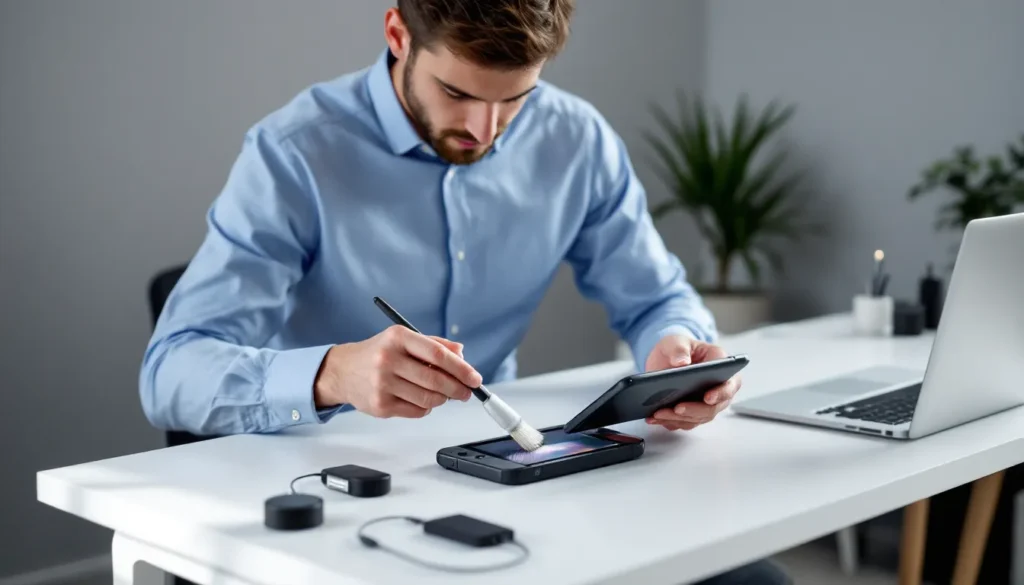
Inspect the charging port on the bottom of the Switch using a flashlight. A quick visual check often reveals visible lint or dust. Use a wooden or plastic toothpick, never metal, to gently scrape away any debris from the port. Metal picks risk scratching or damaging the gold contacts inside the port. Work slowly and deliberately, scraping toward the opening rather than pushing material deeper into the port.
An old toothbrush with soft bristles can also work. Gently brush the exterior and visible interior of the port without applying excessive pressure. If the port is heavily clogged, a manual cleanup might be all that’s needed to restore charging capability.
For stubborn lint, compressed air can help, but be cautious, use short bursts from a can held at least 6 inches away. Avoid tilting the can, as liquid propellant can spray out and damage components.
Checking for Port Damage
Once the port is clean, plug in the charging cable and look for signs of proper contact. The connector should slide in smoothly without resistance. If it feels loose or wobbly, the port’s internal contacts or housing might be damaged. A damaged port often won’t hold a proper connection, preventing consistent charging.
If the port appears bent, cracked, or the internal gold contacts are visibly scratched or corroded, hardware repair becomes necessary. This typically requires opening the console or sending it to Nintendo, as port damage usually can’t be fixed without specialized tools and replacement components.
Try a Different Charging Cable and Power Adapter
Even if the original cable and adapter look fine externally, they might be failing intermittently. USB-C cables are notorious for intermittent faults, they can work one day and fail the next. A defective adapter might not be delivering the proper voltage or amperage, causing the console to think it’s being charged when it’s barely receiving a trickle.
Borrow a charging cable and power adapter from a friend with a Switch, or purchase a replacement. Nintendo officially sells replacements, but third-party USB-C adapters designed for the Switch also work, just confirm compatibility before buying. When testing with a different cable and adapter, plug the console in and wait 15-20 minutes to see if any charging indicators appear or if the console shows signs of powering on.
This step is crucial because it isolates whether the problem lies with the power delivery system or with the console itself. If the Switch powers on with a different cable and adapter, the original peripherals are faulty and should be replaced. If it still won’t respond with confirmed-working peripherals, the issue is internal to the console, and troubleshooting moves to the next steps.
Leave Your Console Plugged In for Extended Time
Sometimes patience is the answer. If the battery is completely dead or in deep sleep mode, a quick 30-minute charge might not be enough to wake it up. Try leaving the Switch connected to a working power adapter for 2-3 hours without attempting to power it on during that time. This allows the battery management system to properly detect the battery and begin a full charge cycle.
During this extended charging period, the console might not show any visual indicators, no LED, no screen activity, nothing. That’s fine. The charging is happening internally, and the system is gradually bringing the battery voltage back to a level where it can safely power on. After 2-3 hours, attempt a power-on. If the console still doesn’t respond, move on to the force restart procedure or try a hard reset.
Extended charging is especially important if the Switch was stored in extreme cold (below 32°F) or if it’s been unused for several months. Cold temperatures slow chemical reactions in the battery, temporarily reducing its ability to deliver power. Warming the console to room temperature during charging helps the battery recover.
Update Your Console Firmware
If the console powers on but behaves strangely, freezing during startup, crashing before reaching the Home Screen, or refusing to fully initialize, a firmware issue might be responsible. Nintendo regularly releases firmware updates that fix stability and performance problems. A corrupted or incomplete firmware update can occasionally prevent normal boot sequences.
Manual Update Process
If the console is responding at all, even if it’s just showing a black or frozen screen, attempt a manual firmware update. Connect the Switch to the internet via WiFi, then navigate to System Settings > System > System Update. Select Update, and the console will check for and install any available firmware.
If the console is completely unresponsive and won’t reach the Settings menu, this step won’t be possible at the moment. In that case, return to the force restart or hard reset procedures first to get the console responsive again, then attempt the firmware update.
Firmware updates require at least 50% battery charge and a stable internet connection. If the update process is interrupted (power loss, connection drop, etc.), it can potentially corrupt the system software. That’s why ensuring a full charge before updating is important. If an update fails or gets interrupted, another attempted update or a hard reset (next section) may be necessary to restore functionality.
Hard Reset Your Nintendo Switch
A hard reset is more aggressive than a force restart. It clears cached data and resets system settings to factory defaults, but it should preserve game saves stored on the console’s internal memory or microSD card. If software glitches are causing the power-on issue, a hard reset often resolves them.
Warning: A hard reset erases user profiles, downloaded games, and system customizations. Game save data stored in the cloud (via Nintendo Switch Online) can be recovered, but locally stored saves might be lost. Only perform this step if the console is completely unresponsive and previous troubleshooting hasn’t worked.
What Hard Reset Does
A hard reset (also called a factory reset) erases the console’s internal storage and reinstalls the base system software. It’s the nuclear option when software is preventing the system from functioning. Unlike some tech devices, the Switch’s hard reset doesn’t require a PC or special software, it’s done entirely on the console.
How to Perform a Hard Reset
First, ensure the console has at least 50% battery charge. Connect it to power and let it charge for at least 30 minutes. Then:
- Power on the console (if it will power on at all).
- Navigate to System Settings.
- Select System at the bottom of the left menu.
- Select Formatting Options.
- Choose Initialize Console (this erases all content) or Reset All Settings (this keeps game saves but removes network settings).
- Follow the on-screen prompts to confirm. The process takes 10-15 minutes.
If the console won’t power on or respond at all, a hard reset via the settings menu isn’t possible. In that case, the console might need a USB-based recovery (possible only with specific tools) or professional service from Nintendo. At this point, contacting Nintendo Support becomes the next logical step.
Troubleshoot Hardware-Related Issues
If the console has been through all the previous troubleshooting steps and still won’t power on, the problem is likely internal hardware. Before going to Nintendo, understanding what might be wrong helps inform repair options and costs.
Battery Replacement Considerations
The Switch’s internal battery is a lithium-ion cell rated for 500-800 charge cycles before capacity starts degrading. After 2-3 years of regular use, the battery can degrade significantly or fail entirely. If the console won’t respond to any charging attempts even with a confirmed working cable and adapter, the internal battery is a likely culprit.
Replacing the battery requires opening the console, which voids the warranty (if still active). But, several repair shops and even dedicated hobbyists offer battery replacement services ranging from $50-$100 in parts and labor. The process involves:
- Removing the back plastic panel (secured with screws).
- Disconnecting the battery connector from the motherboard.
- Unsoldering or unclipping the old battery.
- Installing a new high-capacity replacement battery.
- Reassembling the console.
For those comfortable with electronics repair, replacement batteries are available from electronics suppliers. A quality replacement battery should restore the console to full functionality. But, this should only be attempted by users confident in their soldering and reassembly skills.
Logic Board and Component Failures
If the battery isn’t the issue, the problem might lie with the console’s main logic board or power delivery components (voltage regulators, charging controllers, etc.). These components fail due to manufacturing defects, liquid damage, physical impact, or prolonged overheating.
Logic board failures are difficult to diagnose without specialized equipment and typically can’t be repaired by end users, they require component-level soldering or full board replacement. Physical signs include corrosion on the board, burned-out components (visible as blackened or cracked chips), or signs of liquid damage (discoloration or crusty residue around connectors).
If the console has been dropped, exposed to water, or shows any visible damage, professional repair or replacement is the practical option. Logic board repairs cost $100-$200+ and might not be economical compared to purchasing a refurbished or new Switch.
When to Contact Nintendo Support
If troubleshooting hasn’t resolved the issue, Nintendo Support can diagnose the problem and explain repair options. They’re particularly helpful for warranty claims or if the reader isn’t comfortable performing the repairs described above.
Before contacting support, gather information: the console’s serial number (found on the back or in System Settings), the purchase date if known, any error messages or LED indicators observed, and a summary of troubleshooting steps already attempted. This speeds up the diagnosis process.
Warranty Coverage and Repair Options
Nintendo’s standard warranty covers defects for one year from the purchase date. This includes power delivery issues, battery failures, and motherboard faults, assuming the damage isn’t from physical or liquid damage or user modification. If the console is under warranty, Nintendo will repair or replace it at no cost (though shipping might apply depending on region).
For out-of-warranty repairs, Nintendo offers service through their official repair portal. The reader can Nintendo’s support page to initiate a repair ticket and receive a prepaid shipping label to send the console in. Nintendo diagnoses the issue, provides a repair estimate, and either repairs the console (if approved) or returns it if repair costs exceed a set threshold.
After diagnosis, Nintendo typically offers either repair (fixing the specific failing component) or replacement of the entire console with a refurbished unit, depending on the damage and cost comparison.
Out-of-Warranty Repair Costs
Out-of-warranty repairs through Nintendo typically cost between $100-$150 depending on the issue. A battery replacement runs around $60-$80. Logic board or motherboard repairs are more expensive and might cost $120-$150. In some cases, replacing the entire console with a refurbished unit is more cost-effective, especially if multiple components are failing.
Third-party repair shops (authorized or unauthorized) sometimes offer cheaper repair options, but quality and reliability vary. Authorized Nintendo repair partners are listed on Nintendo’s support site and offer the same warranty and quality assurance as official Nintendo repairs. Unauthorized shops might be cheaper but risk using substandard parts or improper repair procedures.
For a console purchased 3+ years ago, the total repair cost might exceed the price of a refurbished Switch, making a replacement more practical than repair. The reader should compare costs before committing to a repair path.
Prevent Future Power-On Issues
Once the Switch is working again, a few maintenance habits significantly reduce the chance of power-on problems recurring.
Proper Charging Habits
Don’t let the battery fully deplete regularly. The Switch’s battery, like most lithium batteries, degrades faster under extreme discharge cycles. Try to charge the console when it reaches 20-30% battery rather than waiting for it to die completely. If the Switch will be unused for more than a month, charge it to 50% and store it in a cool, dry place. This prevents the battery from entering deep sleep mode or degrading due to prolonged low charge.
Use the official Nintendo charger whenever possible, or confirm that third-party USB-C adapters meet Nintendo’s voltage and amperage specifications (5V/1.5A for standard charging or 15V/2.6A for faster charging). Non-compliant chargers can slowly damage the battery or charging circuits.
Avoid charging in extremely hot environments (above 85°F / 29°C) for extended periods. Heat degrades lithium batteries and can reduce their lifespan significantly. Similarly, never leave the console charging in direct sunlight or in a closed vehicle during warm weather.
Maintenance Best Practices
Keep the charging port clean. Monthly inspection with a soft brush or compressed air prevents lint accumulation. Store the console in a protective case when traveling to minimize exposure to dust and debris. Avoid exposing the console to liquids, extreme temperatures, or physical impacts.
For handheld gamers, consider using a screen protector and carrying case designed for the Switch. These protect the console from drops and scratches and can prevent some hardware issues before they start. Periodically restart the console rather than always leaving it in sleep mode, this clears cached data and keeps the software running smoothly.
Perform a system update whenever Nintendo releases new firmware. Updates not only add features but often include stability improvements and bug fixes that reduce the chance of power or software-related failures. Regular maintenance takes minimal effort but significantly extends the console’s functional lifespan.
Conclusion
A Nintendo Switch that won’t turn on is frustrating, but it’s rarely a dead console. Most cases stem from battery depletion, charging cable failures, or temporary software glitches, all fixable without professional service. Start with the simplest checks: verify the power source, perform a force restart, clean the charging port, and try a different cable. If those don’t work, extended charging, firmware updates, or a hard reset often resolve the issue.
Hardware problems are less common but do happen. Battery degradation, port damage, and logic board failures occur after extended use or physical damage and typically require professional repair or replacement. The good news is that Nintendo Support is accessible and can diagnose the issue fairly quickly if DIY troubleshooting doesn’t work.
Once the console is back in action, basic maintenance keeps it running smoothly for years. Proper charging habits, regular cleanups, and avoiding extreme conditions prevent most power issues from developing in the first place. With these fixes and prevention strategies in the reader’s toolkit, power-on problems become a minor inconvenience rather than a gaming session killer. Whether diving back into a competitive multiplayer match or picking up a story-driven adventure, the Switch should be ready to go, and users can game with confidence knowing what to do if power issues arise again.