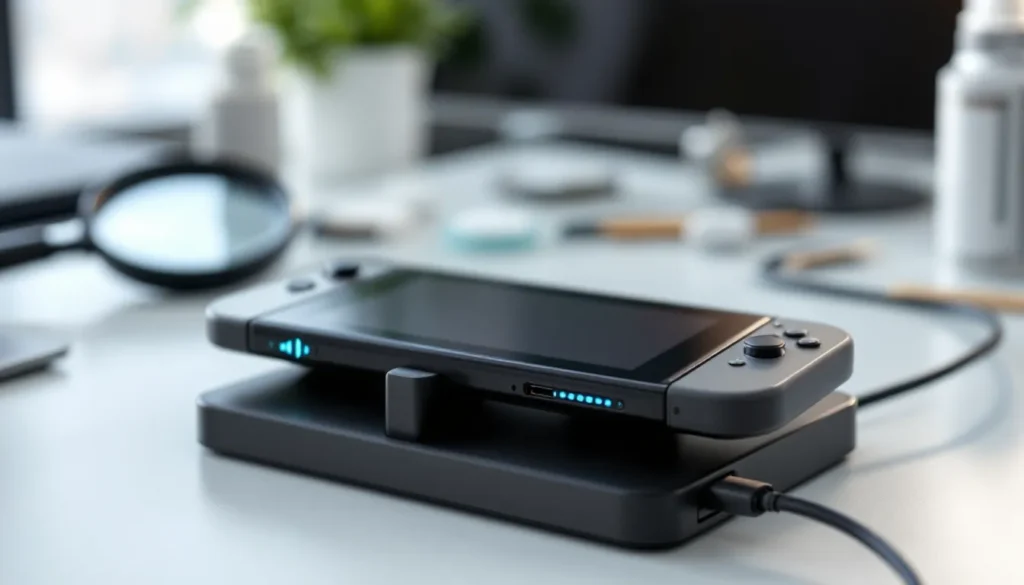
Your Nintendo Switch sits on the dock, and nothing happens. No charging indicator. No LED light. Just dead silence. If you’re staring at your console wondering why it won’t charge, you’re not alone, and the good news is that most charging issues are fixable without shipping your Switch off for repairs. Whether you’re dealing with a frayed cable, a dirty port, or something more stubborn, this guide walks you through every troubleshooting step to get your system back in action. Let’s dig into what’s actually happening and how to fix it.
Key Takeaways
- A faulty USB-C cable or dirty charging port is the most common reason your Nintendo Switch isn’t charging, and both are fixable without professional repair.
- Start troubleshooting by inspecting your cable for damage, testing alternative power outlets, cleaning the port with compressed air and isopropyl alcohol, and restarting your system.
- If your Switch isn’t charging after basic troubleshooting, replace the cable or power adapter with official Nintendo hardware (HAC-015 cable or HAC-002 adapter) to ensure compatibility and safety.
- Nintendo’s one-year limited warranty covers charging port failures from manufacturing defects, so verify your warranty status before paying for out-of-warranty repairs.
- Prevent future charging issues by handling your cable carefully, charging regularly between 20–80%, avoiding simultaneous charging and gameplay, and keeping a backup USB-C cable on hand.
Common Reasons Your Nintendo Switch Isn’t Charging
Before you panic, understand that your Switch not charging usually traces back to one of five culprits. Knowing which one you’re dealing with saves time and money.
Faulty USB-C Cable or Connector
The USB-C cable that came with your Switch gets a workout. You’re bending it, coiling it, shoving it in bags, it’s bound to take damage. Fraying, internal wire breaks, or bent connectors are the most common failures. The cable might look fine on the outside while the internal conductors are completely shot. This is especially common if you’ve had your Switch for more than two years.
Defective Power Adapter
The official Nintendo Switch power adapter (HAC-002) can fail, though it’s less common than cable issues. Adapters wear out from heat cycling, power surges, or manufacturing defects. You might notice the adapter gets unusually warm, flickers, or simply stops delivering power altogether. Some users report the adapter dies without warning after 18–24 months of regular use.
Dirty or Damaged Charging Port
Dust, lint, and debris accumulate inside your Switch’s USB-C port over time. This buildup creates a barrier between the cable’s connector and the port’s internal contacts, preventing proper power transfer. If you’ve dropped your Switch or been rough with the dock, the port itself might have internal damage, bent pins or cracked solder joints that prevent charging even with a clean cable.
Battery Health Degradation
The Nintendo Switch uses a lithium-ion battery that degrades with every charge cycle. After 500–1,000 charge cycles (roughly 2–3 years of regular use), the battery’s capacity drops significantly. In rare cases, a degraded battery refuses to accept a charge at all, even though the charging hardware works fine. The system might recognize power input but show 0% battery status indefinitely.
Firmware and Software Issues
Occasionally, a corrupted system update or software bug prevents the Switch from recognizing that it’s charging. This is rare but happens. The hardware works fine, but the OS fails to detect the power input. You might see the LED light on the dock but no charging indicator on the screen, or the battery percentage stays frozen.
Step-by-Step Troubleshooting Methods
Start here. Work through these steps in order, most charging problems resolve within the first few attempts.
Check Your Cable and Power Adapter First
This is the easiest test and eliminates the most common culprit immediately. Inspect your USB-C cable for visible damage: fraying, kinks, exposed wires, or discoloration. Flex the cable gently near both ends, does it feel stiff or cracked? Now test the power adapter. Feel it for excessive heat. Plug it into a wall outlet and see if the LED indicator lights up (most Nintendo adapters have a small light). Swap your cable for a different USB-C cable if you have one available, even from a phone or tablet. If your Switch charges with an alternative cable, you’ve found your problem.
Inspect the Charging Port
Look directly into your Switch’s USB-C port with a flashlight. You’re searching for lint, dust, or debris blocking the contacts. The port opening should be relatively clean and visible. Tilt your Switch and peer at an angle, sometimes debris hides deep inside. If the port looks visibly damaged (cracked plastic, bent metal pins visible), physical damage is the issue. Don’t force anything into the port at this stage.
Restart Your Nintendo Switch
This sounds basic, but software glitches occasionally prevent charging detection. Hold the Power button for 12 seconds until the console shuts down completely. Wait 30 seconds, then power it back on. Attempt charging again. If the Switch was stuck in a low-power state or software loop, this restart often resolves it. After restarting, leave the console connected for at least 10 minutes before checking for any charging indicators.
Test With Alternative Power Sources
Your wall outlet might be the issue, not your Switch. Plug the adapter into a different outlet in another room. Try a different wall socket entirely, or use an outlet you know is working (like one powering a lamp). Some power strips have failing surge protection that blocks power delivery. If your Switch charges when plugged into a different outlet, the original one needs replacement. This is a quick win that rules out your entire electrical setup.
Update Your System Software
If your Switch powers on but won’t charge, check for system updates. Navigate to System Settings > System > System Update. Make sure you’re on the latest firmware version. If an update is available, install it, sometimes charging issues are patched in firmware releases. This is especially worth trying if you haven’t updated in several months. Connect your Switch to Wi-Fi first (via a computer hotspot if needed) and initiate the update. Once complete, try charging again.
How to Clean Your Nintendo Switch Charging Port
If your port looks dirty, cleaning it properly is your next move. This is a delicate operation, you’re dealing with tiny contacts that can be damaged by careless handling.
Safe Cleaning Methods
Start gentle. Use compressed air (the kind in a can with a thin straw nozzle) to blow out the port from multiple angles. Hold the Switch steady and use short bursts, don’t hold the nozzle in place for more than a second at a time. Shake your Switch gently between bursts to dislodge trapped particles. If compressed air doesn’t work, move to a dry cotton swab or toothpick. Dampen a cotton swab with isopropyl alcohol (90% or higher) and gently swab around the inside of the port. Don’t shove it deep: work at the opening and let the swab absorb debris. For stubborn lint, a wooden toothpick works, but use extreme care, these ports have delicate internal contacts. Scrape gently along the sides, never force anything, and avoid touching the center pin if you can see it.
Let the port dry completely for 10–15 minutes after cleaning before attempting to charge. Residual moisture can cause short circuits.
Tools You’ll Need
You don’t need fancy equipment. A basic cleaning kit includes:
• Isopropyl alcohol (70% or 90%, drugstore staple, cheap)
• Cotton swabs or Q-tips (soft, absorbent, safe on ports)
• Wooden toothpicks (for stubborn debris: safer than metal)
• Compressed air canister (electronics section of most retailers)
• Flashlight or headlamp (to see inside the port clearly)
• Magnifying glass (optional, but helps spot debris)
Avoid metal tools, excessive moisture, and harsh chemicals. Paper towels work in a pinch, but cotton swabs are better because they don’t shed fibers.
When to Replace Charging Cables and Adapters
Cleaning didn’t work. Alternative cables and outlets didn’t help. Time to replace the charging hardware.
Official Nintendo vs. Third-Party Alternatives
The official Nintendo Switch USB-C cable (part number HAC-015) and power adapter (HAC-002) are certified for your system. They’re built to the correct specifications and won’t damage your battery or circuitry. Expect to pay around $20–30 for a cable and $35–50 for an adapter from Nintendo’s official store or authorized retailers. Third-party alternatives are cheaper, sometimes $10–15 for a cable, but quality varies wildly. Some third-party cables work fine: others damage your port or cause slow charging. If you choose third-party, buy from reputable brands (Anker, PowerLine, or established gaming accessory makers) rather than unknown Amazon sellers. Cross-check reviews and ensure the product explicitly states “Nintendo Switch compatible” and “USB Power Delivery certified.”
For peace of mind, official Nintendo hardware is the safer choice, especially if your warranty is still active.
Signs Your Accessories Need Replacement
Replace your cable if you see:
• Visible damage (fraying, cracks, exposed wires)
• Intermittent charging (it works sometimes, not others)
• The connector wobbles or feels loose in the port
• Your Switch charges only at specific cable angles
• The cable gets hot during charging
Replace your adapter if:
• It doesn’t produce an LED indicator light
• It’s abnormally hot to the touch during use
• Your Switch won’t charge even with a different cable
• You’ve owned it for 2+ years and it’s been heavily used
• It shows signs of physical damage (burned plastic, scorching)
When in doubt, test with a borrowed cable or adapter first. If charging works with borrowed hardware, replacement is your answer.
Warranty and Repair Options
Your Switch has stopped charging, troubleshooting failed, and you need professional help. Here’s what you can do.
Nintendo Switch Warranty Coverage
Nintendo offers a one-year limited warranty from the date of purchase on all Switch models (original, Lite, and OLED). This covers manufacturing defects but typically excludes damage from drops, liquid damage, or normal wear and tear. Charging port failures due to manufacturing defects are usually covered: degradation from heavy use is not. Check your receipt and register your Switch at Nintendo’s support site to verify your warranty status. If your Switch is under warranty and the charging issue is deemed a defect, Nintendo will repair or replace it for free. Out-of-warranty repairs typically cost $80–120 depending on the issue.
Contact Nintendo support through their website or by phone. They’ll walk you through diagnostics and either authorize a repair or suggest other options.
Professional Repair Services
If your warranty expired, third-party repair shops are cheaper than Nintendo. Services like iFixit (gaming-focused repair community) and local phone/game repair shops charge $40–100 for charging port replacement or repairs. Some shops can replace the battery, clean ports, or swap the charging cable for much less than Nintendo’s official repairs. Read reviews and confirm they specialize in Nintendo Switch repairs, skill varies significantly. Mail-in repair services exist too: some Promise turnaround times of 5–10 days. Factor in shipping time if you go that route. Many repair shops offer warranty on their work, which gives you protection if the issue recurs.
DIY Repair Considerations
If you’re tech-savvy, parts and guides exist online. Charging port replacements, battery swaps, and dock repairs are documented on video platforms. But, this voids any remaining warranty and requires soldering skills for port replacement. Mistakes can permanently damage your Switch’s motherboard. The Ultimate Guide to Nintendo Switch Pro Controller Repair covers similar repair concepts for controllers, but console repairs are more complex. If you’ve never soldered before, a professional repair is safer and often not much more expensive. DIY makes sense only if you’re comfortable with electronics and have the right tools (soldering iron, flux, desoldering wick).
Prevention Tips for Future Charging Issues
Once your Switch is charging again, prevent this headache from happening again.
Best Practices for Charging Your Console
Treat your charging cable with care. Don’t bend it sharply, don’t coil it tight, and don’t step on it. When unplugging, grip the connector itself, not the cable. A brief tug on the cable damages internal wires you can’t see. Charge your Switch on a flat, stable surface away from water and moisture. Avoid charging near sinks, bathrooms, or humid environments. Don’t charge while playing intensive games, the console generates heat, and simultaneous charging adds thermal stress to the battery. Let your Switch cool down before charging if it’s been under heavy load. Charge regularly rather than letting the battery completely drain. Lithium-ion batteries prefer staying between 20–80% charged: deep discharges stress them.
Don’t leave your Switch charged to 100% constantly. If you’re not using it for extended periods, charge it to about 50% and leave it unplugged. This extends battery lifespan significantly. Modern Switches with newer firmware have smart charging that limits charge to 80% during dock charging when the system isn’t in use, if your system supports this, enable it in System Settings > Power Management.
Storage and Cable Management
When storing your Switch long-term, keep the cable coiled loosely (not kinked) in a separate bag or drawer. Use cable organizers or Velcro straps to keep cords neat without creating stress points. Store the console in a cool, dry place, not in a hot car or humid closet. If you own multiple Switch models (Lite, regular, OLED), label your cables to prevent mixing adapters between regions or models, which can cause issues.
Invest in a quality cable protector or replacement USB-C cable to have on hand. This sounds paranoid until you’re stuck with a dead Switch and the nearest retailer is out of stock. A backup cable costs $20 and prevents frustration. Quality third-party options like those from Anker work reliably as backups. Your dock itself can wear out the cable from repeated insertion: consider rotating between dock charging and handheld charging with a USB-C power bank when possible. This distributes wear and extends cable life. Resources like How-To Geek provide detailed gaming setup guides that cover proper equipment storage and care, including charging device management for optimal hardware longevity.
Conclusion
A Nintendo Switch that won’t charge feels catastrophic when you’ve got a gaming backlog waiting, but in most cases, the fix is straightforward. Start with the basics: inspect your cable and adapter, test alternative power sources, and clean your charging port if it’s visibly dirty. Restart your system and update your firmware. Nine times out of ten, one of these steps reveals the culprit, usually a frayed cable or dust-clogged port.
If those fail, replacement cables and adapters are inexpensive solutions. Official Nintendo hardware ensures compatibility and safety. Third-party options work too, but stick with established brands rather than unknown sellers.
Battery degradation and port damage require professional repair or replacement, especially if your console is older than two years. Don’t hesitate to contact Nintendo support or seek a local repair shop: it’s often cheaper than you expect.
Once your Switch is charging again, care for it properly. Handle cables gently, charge regularly, and avoid extreme temperatures. A little maintenance prevents you from standing in front of a dead console again. Keep a backup cable on hand and you’ll never be stranded, peace of mind that costs less than a single game.