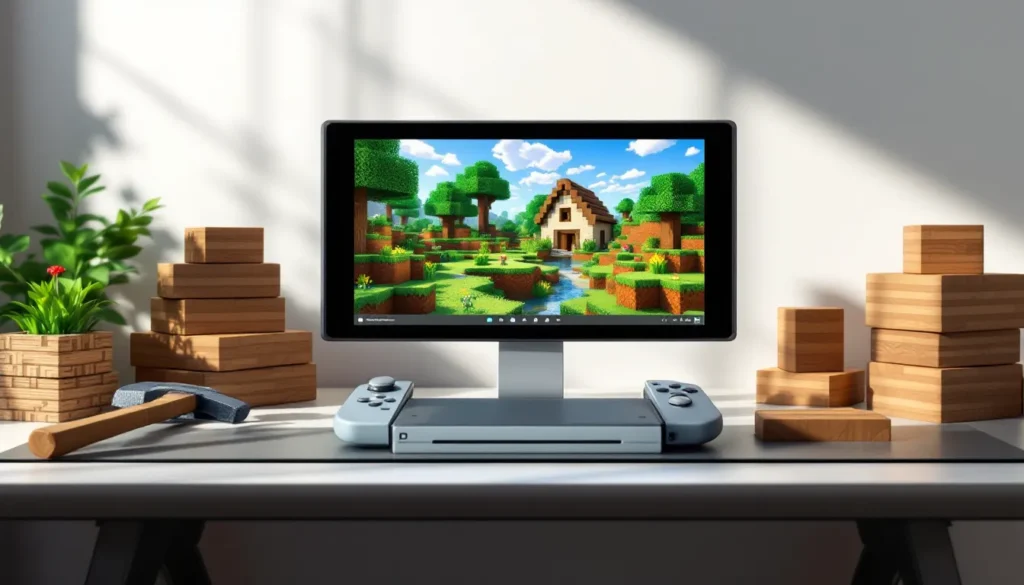
Minecraft on Nintendo Switch has become one of the most versatile gaming experiences available on the hybrid console. Whether you’re a first-time builder or a seasoned creative architect, the Switch version delivers everything that makes Minecraft special: endless building possibilities, exploration, survival challenges, and multiplayer connectivity, all in a format you can play on your couch or on the go. Since its release, Minecraft: Nintendo Switch Edition and its successor, Minecraft for Nintendo Switch, have defined portable sandbox gaming. With millions of players across the platform, it’s clear why the Switch version remains a cornerstone title for the console. This guide covers everything you need to know in 2026, from installation and initial setup to advanced building techniques and troubleshooting.
Key Takeaways
- Minecraft on Nintendo Switch supports both Survival and Creative modes with full cross-platform compatibility across PC, mobile, PlayStation, Xbox, and other Switch users through Minecraft Realms or local networks.
- The Switch renders Minecraft at 1080p in docked mode and 720p in handheld mode, maintaining 60 FPS on Switch OLED with occasional dips to 30 FPS on standard models in complex worlds.
- New players should prioritize gathering wood, crafting tools, building shelter before nightfall, and managing hunger to survive the early game progression and establish a foundation for expansion.
- Minecraft Nintendo Switch Edition offers versatile gameplay with handheld battery life of 4.5 to 6.5 hours, allowing seamless play on the go or docked with up to 4 local split-screen players.
- Advanced building requires intentional design including varied rooflines, mixed textures, strategic lighting, and interior furnishing to create architecturally appealing and immersive structures.
- Enable cloud save backup immediately to protect your worlds from accidental deletion, and optimize performance by reducing simulation distance and clearing excess entities in resource-heavy builds.
What Is Minecraft: Nintendo Switch Edition?
Key Features and Gameplay
Minecraft on Nintendo Switch is a sandbox game where creativity meets survival instinct. You’re placed in a procedurally generated world and free to build, explore, gather resources, and fight monsters, or simply relax and create without threats. The core gameplay loop remains unchanged from other versions: chop trees, craft tools, build shelters, and expand your imagination.
The Switch version maintains feature parity with other console editions, supporting both Survival Mode and Creative Mode. Survival Mode challenges players to gather resources, manage hunger, and defend against hostile mobs. Creative Mode removes all survival pressure, giving you infinite blocks and the ability to fly, perfect for aspiring architects.
One of the biggest advantages of Minecraft on Switch is its cross-platform compatibility. You can play with friends on PC, mobile, PlayStation, Xbox, and other Switch users through Minecraft Realms or local networks. This flexibility keeps the game fresh and connected, regardless of what device your friends own.
The game also includes the Marketplace, where players can purchase cosmetic skins, worlds, and texture packs. While not required for core gameplay, these cosmetics add personality to your character and environment. Some players prefer the vanilla experience: others love customizing their worlds with community-created content.
Performance improvements over the years have made the Switch version increasingly stable. Regular updates introduce new biomes, mobs, blocks, and gameplay features, keeping the experience aligned with versions like Java Edition and Bedrock Edition on other platforms.
Platform Compatibility and Performance
Graphics and Frame Rate
The Nintendo Switch renders Minecraft at 1080p resolution in docked mode and 720p in handheld mode. Frame rate sits at a consistent 60 FPS across both modes on the Switch and Switch OLED, though the standard Switch occasionally dips to 30 FPS in heavily populated or complex worlds with many entities and redstone contraptions.
The OLED model offers the sharpest visuals when handheld due to its brighter, more vibrant screen. Visually, the Switch version uses the Bedrock Engine, which delivers similar graphics quality to the Xbox and PlayStation versions. Draw distance, how far you can see before terrain renders, reaches approximately 96 blocks, balancing performance with visual depth.
Render quality depends on world complexity. Simple, flat landscapes maintain consistent frame rates. Dense jungles with heavy foliage, large redstone contraptions, or farms packed with entities may cause noticeable performance dips. This is a known limitation of the hardware but rarely impacts casual play or survival gameplay.
Undocking the console doesn’t trigger automatic graphical downgrades: the Switch simply renders at the lower handheld resolution. Most players won’t notice a significant visual drop, especially on smaller screens or at arm’s length during portable play. The 720p resolution remains crisp and readable for block placement and resource gathering.
Handheld vs. Docked Mode
Handheld mode is where the Switch truly shines for Minecraft. You get the full experience in a portable form: building, mining, exploring, and multiplayer, all without needing a dock or TV. Battery life varies based on your Switch model: approximately 4.5 to 6.5 hours of Minecraft gameplay on standard Switch, and slightly longer on the newer OLED model.
Docked mode paired with a larger TV creates an immersive experience, especially when designing elaborate builds. You’ve got better visibility of fine details and a wider field of view for both creative projects and combat. The controller feels more responsive when gripped comfortably during longer sessions.
The magic of the Switch is the flexibility. Play on the bus, switch to your TV when you’re home, even use tabletop mode with Joy-Cons separated if you prefer. Each mode maintains the same save data, so your world evolves seamlessly across all play styles. This flexibility makes Minecraft on Switch feel more integrated into your daily gaming habits than any other version.
Getting Started: Installation and Setup
Purchasing and Downloading Options
There are three ways to get Minecraft on Nintendo Switch:
-
Nintendo eShop Digital Purchase – The most common method. Go to the eShop on your Switch, search for “Minecraft,” and buy it. The game downloads directly to your console. Cost is typically $26.99 USD.
-
Physical Cartridge – Available at most retailers (Amazon, GameStop, Target, Walmart). Physical copies come on a game cartridge, though some updates still require downloading patches. This option lets you trade, sell, or gift the cartridge if desired.
-
Game Pass for Nintendo Switch – If you subscribe to Nintendo Switch Online + Expansion Pack, you get access to Minecraft at no additional cost as part of the Cloud Gaming library.
Once purchased, the game installs quickly. The base game requires approximately 650 MB of storage space, so ensure you have enough free space on your console. Most modern Switch systems have sufficient storage, but if you’re running low, consider a microSD card (up to 2 TB supported).
After installation, launch the game. You’ll create a player profile (if you haven’t already) and start a new world or load an existing save.
Initial World Creation and Settings
When you start Minecraft for the first time, you’ll face world creation options. Here’s what to expect:
World Type Selection:
- Survival Mode: Default difficulty is Normal. You can adjust it to Peaceful (no mobs), Easy, Normal, or Hard based on your preference.
- Creative Mode: No mobs, infinite blocks, flight enabled from the start.
- Adventure Mode: A restricted mode primarily for playing custom maps.
World Settings:
- Set your spawn point and world border
- Enable or disable specific gameplay features (TNT damage, fire spread, PvP, command blocks)
- Choose your seed (a number that generates identical worlds on any version if you share it)
- Decide between “Old” and “Infinite” world types (Infinite is standard and recommended)
Difficulty and Gameplay Options:
After creating your world, you can adjust difficulty at any time by pausing the game. Peaceful removes hostile mobs entirely, making it ideal for pure building. Hard increases mob damage and spawning rates, creating genuine survival pressure.
Recommendation: New players should start on Normal or Easy mode. Peaceful works if you just want to focus on building without threats. Keep in mind that once you set a difficulty, you can’t change it back on Hardcore worlds, though standard Survival worlds allow difficulty adjustments mid-game.
Your first few minutes matter: gather wood, craft basic tools, and establish a shelter before nightfall (when hostile mobs spawn). The early game grind is rewarding and sets the foundation for everything you’ll build afterward.
Essential Tips and Tricks for New Players
Survival Mode Fundamentals
Survival Mode is the beating heart of Minecraft. Here’s what separates new players from veterans:
Resource Gathering:
- Wood is your first priority. Hit any tree with your fist until you get logs, then craft them into planks in your inventory.
- Craft those planks into a Crafting Table and place it on the ground.
- Use your Crafting Table to make a Wooden Pickaxe, then a Stone Pickaxe (stone mines faster and lasts longer).
- Hunt for Iron Ore with your Stone Pickaxe and smelt it in a Furnace to create Iron Ingots for better tools.
Shelter Building:
Build a shelter on your first day. A 5×5 hut with a door, bed, and Furnace is enough to survive your first night. As you progress, expand and improve. Shelter placement matters: avoid building near ravines or cliff edges where mobs spawn.
Food and Health:
Eat food regularly to maintain hunger. Early options include:
- Raw meat from killed animals (cook it in a Furnace for better nutrition)
- Crops (plant wheat, potatoes, carrots) for renewable food
- Bread (craft from wheat) and Cooked Chicken are early game staples
Hunger affects health regeneration. Keep your hunger bar mostly full to recover from damage.
Mining and Ore:
- Iron spawns deeper underground and becomes your primary tool material
- Diamonds are rare and found below Y-level 16 (check your coordinates)
- Coal powers Furnaces
- Avoid exploring deep caves alone until you’re geared with Iron or better
Combat Basics:
Hold ZR (default attack) to hit mobs. Creepers are dangerous (they explode), so maintain distance. Skeletons shoot arrows from range. Zombies are slow but dangerous in groups. Keep a sword, shield, and bow handy for any surface encounter.
Creative Mode Strategies
Creative Mode removes all survival pressure and unlocks pure imagination. You have infinite blocks and the ability to fly, making it perfect for architects and builders.
Building Without Limits:
- Use the inventory (press X) to access every block type
- Fly by double-tapping the jump button
- Adjust your flying speed and allow yourself to clip through blocks for faster construction
- Use a Building Wand or Stack feature to copy and paste structures (available via commands or creative tools)
Planning Large Projects:
Before building, sketch your design or use grid paper. Decide on a scale: should your house be 20×20 blocks or 50×50? Planning prevents wasted effort and ensures proportional architecture.
Learning Building Techniques:
Watch creative builders on YouTube or check the List of Best-Selling Nintendo Switch Video Games to see what other players are creating. Pay attention to:
- Rooflines and slopes (use stairs, slabs, and angled blocks)
- Texture variety (mix different wood types, stone, and decorative blocks)
- Lighting (place torches, lanterns, and glowstone for atmosphere)
Experimental Building:
Creative Mode is your sandbox for trying new styles. Build a castle, a futuristic city, an underground base, there are no consequences. This experimentation trains your eye for design and architecture, skills you’ll apply in Survival Mode later.
Multiplayer and Co-Op Play
Local Split-Screen Gameplay
Local split-screen is the quickest way to play with friends on one console. Simply connect up to 4 controllers, and each player gets a portion of the screen while sharing the same world.
Setting Up Split-Screen:
- Launch Minecraft and create or load a world
- Press Plus to pause, then select “Players”
- Connect additional controllers (up to 3 more)
- Each new player chooses their character skin and joins the world
Split-screen works in both Survival and Creative modes. Frame rate drops to 30 FPS when multiple players are active (a necessary tradeoff for the shared processing), but gameplay remains smooth for casual building and exploration.
Local Split-Screen Limitations:
- Maximum 4 players on one console
- Shared world data (no separate saves per player)
- Slightly reduced draw distance for performance
- Joy-Cons work, but Pro Controllers offer better comfort for extended sessions
Best Practices:
Take turns controlling major decisions on shared worlds, especially in Survival Mode. Establish a common base and collaborative goals. If you’re playing on Peaceful difficulty, split-screen becomes pure creative fun with zero conflict.
Online Multiplayer Features
Online multiplayer connects you with up to 8 players simultaneously, though only 4 can share one world on Nintendo Switch (compared to larger limits on PC). You have two primary options:
Minecraft Realms:
Realms is the official subscription service for persistent, always-online worlds. A Realm owner pays monthly ($2.99 to $7.99 USD) to host a world that stays online even when they’re offline. Friends can join anytime within the subscription period.
Advantages:
- Worlds persist between sessions
- Built-in backup and recovery
- Automatic updates and maintenance
- Works across all Bedrock platforms (Switch, PC, mobile, Xbox, PlayStation)
Local Network Multiplayer:
You can also connect to worlds hosted by other Switch owners on your local WiFi network (LAN). This is free but requires the host console to stay in the world for others to play.
Cross-Platform Play:
Switch players can join Bedrock worlds hosted by Xbox, PlayStation, PC, or mobile players, and vice versa. This is a massive advantage: your friends don’t need a Switch to play with you. But, Java Edition (PC) is not compatible with Bedrock worlds.
Multiplayer Considerations:
- Ensure stable WiFi for online play
- Friendly-fire (PvP) can be toggled on or off
- Griefing (destruction by other players) is possible on unprotected worlds, so consider who you invite
- The Switch handles up to 4 players per world smoothly: larger groups may experience lag
For competitive experiences, some players use custom maps from the Marketplace that simulate minigames, PvP arenas, or parkour challenges. These keep multiplayer sessions engaging beyond simple building and survival.
Best Practices and Advanced Gameplay
Building Techniques and Design Tips
Moving beyond basic shelters requires intentional design. Here’s how experienced builders approach architecture:
Foundation and Scale:
Start with a solid foundation. Lay out your base footprint with a perimeter of blocks before building vertically. Use odd dimensions (11×11, 15×15) rather than even ones, they look more natural and offer better symmetry. A rule of thumb: walls should be at least 3-4 blocks tall to avoid looking cramped.
Rooflines and Shape:
Flat roofs look boring. Introduce slopes using stairs, slabs, and full blocks at angles. Peaked roofs (two slopes meeting at a point) feel architectural. Try the “hipped roof” style (four-sided slope) for modern appeal. Vary your roof height across different sections to create visual interest.
Texture and Color Blocking:
Don’t use a single block type for walls. Mix oak wood, spruce wood, stone, and decorative blocks in a cohesive pattern. For example: alternate vertical columns of wood with stone, or use stone as a base trim. Vertical lines make buildings look taller: horizontal lines ground them visually.
Lighting and Atmosphere:
Place torches, lanterns, and glowstone deliberately. Avoid over-lighting interiors, shadows create depth. Exterior lighting guides navigation and prevents mob spawning around your base. Use orange torches for warm, cozy vibes or blue (soul) lanterns for modern, cool aesthetics.
Interior Design:
Don’t neglect indoors. Furnish your base with:
- Brewing stands and potion racks
- Bookshelves for libraries
- Item frames displaying valuables
- Stairs and slab combinations for seating areas
- Carpets and rugs (colored wool) for coziness
Interiors that match your exterior style feel cohesive and lived-in.
Combat and Exploration Strategies
Combat in Minecraft is straightforward but skill-based. Exploration, but, demands preparation and smart decision-making.
Combat Essentials:
- Sword (Iron or Diamond): Your primary weapon for mob encounters. Hold ZR to attack, managing a rhythm rather than spam-clicking.
- Shield: Press ZL to block incoming damage and projectiles. Shields are game-changers in hard mode.
- Bow and Arrows: Essential for taking down Skeletons and Creepers from range. Sneak (press ZL while moving) to avoid knockback.
- Armor: Iron armor reduces damage significantly. Diamond armor is better but rarer. Prioritize chest plate and helmet for maximum protection.
Mob-Specific Tactics:
- Creepers: Keep distance. They move toward you silently, then explode. Back away while attacking or use a bow.
- Skeletons: Strafe (move side-to-side) while approaching. Use a shield to block arrow spam.
- Zombies: Slow and straightforward. Engage with a sword and sword-in one, avoiding groups.
- Endermen: Don’t look at them (avoid aiming your crosshair at their face). They teleport when attacked from range.
Exploration Without Dying:
Before venturing into caves or deep exploration:
- Craft a bed and sleep near your target area to set a respawn point
- Bring food, torches, and tools (pickaxe, sword, axe)
- Mark your path with torches on one side so you can navigate back by following them
- Avoid deep caves or the Nether until you’ve crafted Iron tools
- Bring a water bucket to escape lava or slow fall damage
- Never dig straight down or straight up (gravel or lava above/below can be deadly)
Advanced Exploration:
Once geared with Diamond armor, explore Nether fortresses or seek out End strongholds. The Nether is a hostile dimension with unique resources (Nether wart, Blaze rods). The End contains the Ender Dragon and concludes the game’s main storyline.
Check Can You Stream on Nintendo Switch? if you want to document your exploration and adventures for your audience. Streaming adds a fun social layer to exploration and combat.
Common Issues and Troubleshooting
Performance Optimization
If you’re experiencing lag, frame rate drops, or stuttering in Minecraft on Switch, here are evidence-based fixes:
Reduce World Complexity:
- Delete unnecessary redstone contraptions or large farms not in use
- Clear excess entities (mobs, dropped items) by traveling far from your base temporarily
- Disable particle effects in settings if you’re running older worlds with heavy builds
Graphics Settings:
Access these by pausing your game and navigating to Settings:
- Simulation Distance: Lower this from maximum to reduce the number of active chunks being processed simultaneously
- Render Distance: A shorter draw distance improves FPS in exploration-heavy worlds
- Brightness: Doesn’t affect performance but helps visibility in caves
Console-Level Troubleshooting:
- Restart your Switch – Close Minecraft entirely and relaunch it. This clears temporary memory buildup.
- Check available storage – If your Switch is nearly full, performance degrades. Delete unused games or apps.
- Update the game – Open Minecraft, press Plus, and check for updates. Performance patches are released regularly.
- Restart your WiFi router – For online multiplayer lag, power-cycle your router.
Known Hardware Limitations:
- The standard Switch dips to 30 FPS in heavily populated worlds: this is normal
- The Switch OLED and Switch Lite maintain steadier performance than the original model
- Split-screen multiplayer intentionally caps at 30 FPS as a technical limitation
These aren’t bugs, they’re inherent to the hardware. If performance issues persist after optimization, your world may simply be too complex for smooth play. Consider starting a fresh world or removing your most intensive builds.
Save File Management
Save file corruption or accidental world deletion happens. Here’s how to prevent and recover:
Backup Your Worlds:
- Nintendo Switch Cloud Saves: Enable automatic cloud backup in your Switch system settings (System > Data Management > Save Data Cloud Backup). This backs up your Minecraft saves automatically.
- Create a new profile on your Switch and copy your world to that profile as a manual backup
- Screenshot your best builds for documentation
Understanding Save Data:
- Minecraft saves are tied to your user profile on the Switch
- Deleting your profile deletes associated saves (unless cloud backup is enabled)
- Worlds saved offline sync to the cloud if you’re connected to the internet
Recovering Deleted Worlds:
- If you deleted a world accidentally, check Your Worlds in the main menu, you may be able to restore it
- If cloud backup is enabled, contact Nintendo Support with your profile information for potential recovery
- Always assume deleted worlds are gone unless you have a backup
Best Practices:
- Enable cloud save automatically (it’s free with Nintendo Switch Online)
- Name your worlds descriptively (“Main Survival – Version 3” vs. “World2”)
- Avoid manually deleting saves unless you’re certain
- Create experimental worlds separately from your “main” survival world
World saves are stored on your Switch’s internal storage. If your console fails, cloud backup is your only recovery option. This is why enabling it is critical for any serious player.
If your game crashes frequently, try these steps:
- Clear the Minecraft cache (System > Data Management > Software > Minecraft > Clear Cache)
- Reinstall the game if crashes persist
- Update your Switch OS to the latest version
For detailed troubleshooting beyond these steps, consult IGN’s gaming guides or GamesRadar’s console support resources, which maintain comprehensive databases of known issues and workarounds.
Conclusion
Minecraft on Nintendo Switch remains one of the platform’s most essential titles, blending creative freedom with portable accessibility. Whether you’re building intricate architecture in Creative Mode, grinding through Survival challenges, or collaborating with friends via split-screen or online multiplayer, the Switch version delivers the full Minecraft experience without compromise.
The tips, techniques, and strategies covered here form a foundation for both new and returning players. Start with the basics, gather resources, build shelter, explore safely, then scale up to advanced building techniques and multiplayer adventures. Performance is solid on both standard Switch and OLED models, and regular updates keep the game aligned with other Bedrock platforms.
Remember: Minecraft rewards patience and creativity. Your first house won’t be a masterpiece, your first survival night will feel chaotic, and that’s exactly how it should be. Every experienced player started as a beginner hitting trees with their fist.
For more curated gaming content and Nintendo Switch recommendations, explore Discovering Rare Nintendo Switch Games or check out Game Informer’s latest reviews to stay informed on what’s next in the gaming world. Jump into your world, start building, and most importantly, have fun.