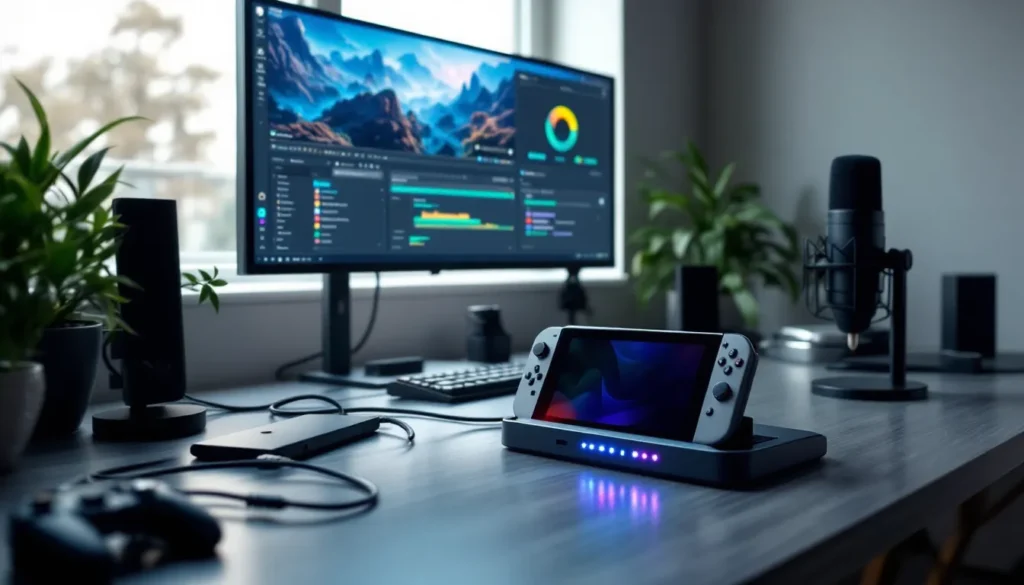
Whether you’re grinding through competitive online matches or sharing your finest gaming moments with an audience, a capture card for Nintendo Switch is the difference between casual streaming and looking like a pro. The Nintendo Switch’s built-in recording features are fine if you’re just clipping a quick highlight reel, but if you want clean, high-quality video for platforms like Twitch or YouTube, you’ll need dedicated hardware. The right capture card transforms how your gameplay looks to viewers, crisp visuals, smooth frame rates, and professional presentation, without tanking your console’s performance. This guide walks you through everything: what to look for, the different types available, top models for 2026, setup instructions, and troubleshooting tips to get streaming or recording fast.
Key Takeaways
- A capture card for Nintendo Switch enables professional-grade 1080p@60fps streaming and recording, far surpassing the console’s native 30–60 second clip limitations.
- External USB capture cards are the most practical option for most streamers, offering plug-and-play simplicity, portability, and affordability without sacrificing performance.
- Proper setup requires USB 3.0+ connectivity and reliable HDMI cables—most troubleshooting issues stem from loose connections or bandwidth conflicts with other USB devices.
- Top-tier options like the Elgato 4K60 Pro XT and budget-friendly models like the Cam Link 4K deliver stable 1080p@60fps capture, with quality justified by reliability and streaming software integration.
- Optimizing your capture card setup involves maintaining clean audio levels, stable internet (5+ Mbps upload), and hardware encoding to prevent frame drops and deliver professional presentation.
- Unlike the Switch’s built-in recording, a capture card unlocks live streaming, custom overlays, extended recording duration, and direct integration with editing software—essentials for content creators.
What Is A Capture Card And Why You Need One For Nintendo Switch
A capture card is a piece of hardware that records or streams video from your gaming console in real-time. It sits between your Nintendo Switch and your monitor or streaming PC, intercepting the video signal and converting it into a format your computer can process. Think of it as the bridge between your console and the content creation world.
The Nintendo Switch outputs video via HDMI (when docked) or USB-C (handheld mode on newer models). A capture card grabs that signal, encodes it, and passes it to your streaming software or directly to platforms like Twitch. The beauty of using a capture card is that it offloads encoding work from your Switch, meaning zero impact on game performance. Your frame rates stay locked, your latency stays clean, and viewers see professional-grade footage.
Why not just use the Switch‘s built-in recording? The console’s internal features are limited. You get 30-second clips on older models, or up to 60 seconds on more recent ones. The maximum resolution tops out at 1080p, and there’s no live streaming support from the Switch itself. If you want to build an audience or create longer content with features like overlays, alerts, and custom layouts, you need a capture card and a streaming PC or Mac running software like OBS Studio or Streamlabs.
For competitive gamers, streamers, and content creators, a capture card for Nintendo Switch isn’t optional, it’s essential. It’s the foundation of a professional setup.
Key Specifications To Look For In A Nintendo Switch Capture Card
Before dropping money on a capture card, understand the specs that matter. Not all capture cards are created equal, and buying the wrong one means wasted cash and frustration.
Resolution And Frame Rate Capabilities
Resolution determines how sharp your footage looks. The Nintendo Switch outputs up to 1080p at 60 frames per second when docked. A solid capture card should handle at minimum 1080p@60fps without dropping frames or stuttering.
For competitive games like Splatoon 3 or Smash Bros Ultimate, 60fps is crucial, it ensures smooth playback that matches the gameplay. Some higher-end cards support 4K capture, but that’s overkill for Switch content since the console maxes out at 1080p anyway. You’ll see capture cards advertising “4K pass-through,” which means the card passes the signal through to your monitor in 4K, but the actual recorded file is still 1080p. That feature is nice but not essential.
Check the frame rate consistency too. A cheap card might claim 60fps but deliver drops or stutters during intense scenes. Frame rate drops are visible to viewers and destroy streaming quality.
Connectivity And Compatibility
The Nintendo Switch connects via HDMI when docked. Most modern capture cards accept HDMI input, but you’ll want to confirm USB 3.0 or USB 3.1 output to your PC for the actual data transfer. USB 2.0 is too slow, it’ll cause bottlenecks and frame drops.
Compatibility matters too. The capture card should work with Windows, macOS, or both, depending on your streaming setup. Most popular cards support both, but don’t assume. If you’re using a Mac to stream, verify the drivers and software support macOS before buying.
If you ever plan to use handheld mode, check if the card supports USB-C input. Some cards only work with docked mode via HDMI, limiting your flexibility.
Latency And Performance Considerations
Latency is the delay between what you see on your monitor and what gets encoded. For streaming, a slight delay (a few frames) is acceptable since viewers aren’t interacting in real-time. For recording or streaming with chat interaction, lower latency feels better.
Intrinsic latency comes from the encoding process itself, there’s no way around it completely. But quality capture cards keep it between 0.5–1.5 seconds, which is imperceptible during gameplay. Cheaper cards can hit 2–3 seconds or more, and that sluggish feel gets noticeable.
Also consider CPU load. Some capture cards are USB-powered and handle most encoding on the device itself. Others rely on your PC’s CPU. If your streaming PC is already maxed out running OBS and games, you want a card that takes encoding burden off your system. For most Switch setups, the CPU load is minimal since the console’s output is already encoded, the card just needs to grab and pass it through.
Types Of Capture Cards For Nintendo Switch
Capture cards come in three main flavors for Switch gamers. Knowing which type fits your setup saves headaches.
Internal Capture Cards
Internal capture cards slot into a desktop PC’s PCIe slot (usually x1, sometimes x4). These are rare in the consumer market and mostly used by professional studios or esports teams with specialized setups. Installation requires opening your case, identifying an available slot, and mounting the card, not exactly plug-and-play.
Pros: Direct bandwidth from PCIe eliminates USB bottlenecks, so you get the lowest possible latency and highest stability. Cons: Requires a desktop PC with available slots (laptops and older systems might not have them), involves more technical installation, and costs more than external cards. For most Switch streamers, internal cards are overkill.
External USB Capture Cards
These are the most common and beginner-friendly option. They’re standalone boxes that connect to your PC via USB (usually USB 3.0 or 3.1). HDMI cables run from your Switch dock into the capture card, and USB carries the data to your computer.
Pros: Plug-and-play simplicity, work with any computer (PC or Mac, laptop or desktop), no installation required, portable, and affordable. Cons: Slightly higher latency than PCIe cards (but still imperceptible), depend on USB bandwidth, and cheaper models might have stability issues. For 90% of Switch streamers and creators, external USB cards are the sweet spot.
HDMI Pass-Through Capture Cards
These cards include an additional HDMI output that sends the video signal to your monitor after capturing it. So the video flows: Switch → Capture Card → Monitor, and simultaneously: Capture Card → PC (via USB).
Pros: Lets you see your gameplay on your monitor while also capturing it, without creating two separate video paths. Cons: Adds complexity and latency compared to simpler capture-only cards. They’re more expensive than basic USB cards. If your streaming setup involves looking at your monitor while playing, these are convenient. If you’re okay using a separate display for streaming software, a basic external card works fine.
Top Capture Card Options For Nintendo Switch Streaming And Recording
Dozens of capture cards exist, but a few dominate the Switch streaming ecosystem in 2026. Here are the standouts.
Premium And High-Performance Models
Elgato 4K60 Pro XT remains a top choice for streamers who want zero compromises. It captures 1080p@60fps flawlessly, includes 4K pass-through, and works seamlessly with streaming software via simple plugin integration. The build quality is excellent, the latency is minimal, and driver support is rock-solid across Windows and macOS. Price-wise, you’re looking at $200+, but the reliability justifies it if streaming is serious for you.
AVerMedia Live Gamer Portable 2 Plus is another premium pick, especially if you prioritize recording quality over live streaming. It handles 1080p@60fps capture with excellent color accuracy. The device includes an SD card slot for direct recording, meaning you don’t even need a PC connected, just plug into your Switch dock, record to the SD card, and grab the footage later. This flexibility is huge for content creators. Around $150–180.
SCUF Performance Gear’s Pro (formerly known as the ROG Strix Capture One) is built specifically for esports and competitive streamers. It’s fast, stable, and integrates perfectly with streaming overlays. The learning curve is slightly steeper, but esports teams swear by it. Pricier than Elgato, but delivers tournament-grade performance.
Budget-Friendly And Entry-Level Options
Elgato Cam Link 4K sits at around $90–110 and is legitimately solid for beginners. It captures at 1080p@60fps, connects via USB 3.0, and works with OBS out of the box. The main trade-off: no 4K pass-through and slightly simpler feature set compared to the XT model. For someone starting out or streaming occasionally, it’s perfect. Many streaming guides recommend the Cam Link for newcomers.
ASUS TUF Gaming Capture Box hovers around $100–120 and punches above its weight in performance. It’s built tough (fitting the TUO branding), handles 1080p@60fps without issues, and integrates with ASUS streaming software. No pass-through output, so you’ll need a separate monitor setup, but the value is hard to beat.
Roxio Game Capture HD Pro is the budget kingpin at $60–80. Yes, it’s the cheapest option here, but it actually works. 1080p@60fps capture, USB 3.0, straightforward software. You won’t get the bells and whistles of premium cards, but for pure capture functionality, it delivers. Just verify driver support for your OS before buying, older cards sometimes struggle with the latest Windows or macOS versions.
For most gamers, Elgato’s Cam Link 4K or the AVerMedia Portable 2 Plus represent the sweet spot: solid performance, reliability, and price under $200.
How To Set Up And Configure Your Capture Card For Nintendo Switch
Getting a capture card running is straightforward, but the devil hides in a few setup details. Follow this workflow to avoid common headaches.
Hardware Connection And Installation
Start with your Switch docked and powered off. Locate the HDMI port on your dock, it’s the small rectangular port on the back. Grab an HDMI cable and connect one end to your Switch dock and the other to the HDMI input on your capture card. Make sure the connection is snug: loose HDMI connections cause signal loss and video artifacts.
Next, connect the USB cable from your capture card to your PC or Mac. Use a USB 3.0 or 3.1 port if possible (these are usually blue inside the port). USB 2.0 ports work in a pinch but can cause frame drops with heavy processing loads.
If your capture card has a pass-through HDMI output, run an HDMI cable from that output to your monitor. Now power on your Switch and your PC. The capture card should be detected automatically by your operating system.
Don’t skip this: check the physical video connection before moving to software. Plug into a monitor or TV via the pass-through (if available) and confirm you see the Switch home screen. This confirms the hardware link is solid before you mess with drivers.
Software Configuration And Driver Setup
Windows and macOS should automatically recognize your capture card as a generic video device. But, for full functionality and stability, install the manufacturer’s drivers.
Head to the support page for your specific card (Elgato, AVerMedia, ASUS, etc.) and download the latest drivers for your OS. Run the installer and restart your computer. This install ensures optimal performance and unlocks any custom features bundled with the card.
Next, open your streaming software (OBS Studio is free and industry-standard). Add a new video source:
- Click “Add Source” in OBS and select “Video Capture Device.”
- In the dropdown, select your capture card by name.
- Set the resolution to 1920×1080 and frame rate to 60fps.
- Adjust the “buffers” setting if you experience lag, higher values reduce jitter but add latency.
Preview the output in OBS to confirm you’re seeing clean Switch footage. If the video looks choppy, check your USB connection and confirm you’re using USB 3.0, not 2.0.
For audio, your capture card likely provides both HDMI audio pass-through and USB audio. In OBS, add your capture card as the audio input source under “Audio Input Capture.” Test levels and adjust in the mixer to avoid clipping or silence.
Optimizing Settings For Streaming And Recording
Once everything connects, optimize your output quality. In OBS, set your output resolution to match your capture card’s input (1920×1080 at 60fps). If you’re streaming, set bitrate between 4,500–6,000 kbps for Twitch (depends on your internet upload speed, test with a speed test tool).
For recording, increase bitrate to 8,000–12,000 kbps if your internet and drive space allow. Higher bitrate means better visual quality but larger file sizes.
Adjust audio levels so peak levels hover around -6dB. Too low and viewers can’t hear you: too high and audio distorts.
Enable hardware encoding in OBS if available (NVIDIA NVENC or AMD VCE). This offloads encoding to your GPU instead of CPU, freeing up processing power for smooth gameplay. Without hardware encoding, OBS might struggle if your PC is modest.
Test your full setup in a short practice stream or recording. Watch the output on Twitch or in a playback video file. Look for dropped frames, audio sync issues, or visual artifacts. Twitch’s built-in stats show dropped frames in real-time, if you see more than 1–2% dropped, dial back bitrate or check your USB connection.
One last tip: disable anything else using USB bandwidth during streams (external hard drives, USB hubs with multiple devices). Your capture card needs clean USB lanes to prevent frame drops.
Common Issues And Troubleshooting Tips
Even with solid hardware, things occasionally go sideways. Here are the most common problems and how to fix them.
Connection Problems And Compatibility Issues
Card not recognized by computer: First, check the USB cable itself, swap it with another USB 3.0 cable to rule out a bad cord. Restart your PC. If still no luck, uninstall and reinstall the manufacturer’s drivers. Windows sometimes locks drivers in a bad state: a clean reinstall fixes this 90% of the time.
HDMI signal drops or flickers: Loose HDMI cables are the culprit 80% of the time. Disconnect both ends, inspect for bent pins, reconnect firmly. If that doesn’t work, try a different HDMI cable. Some cheap cables or older cables develop intermittent faults. Also, check if the Switch dock firmware is updated, yes, docks get firmware updates sometimes.
Video stuttering or frame drops: This usually stems from USB bandwidth issues. Move your capture card to a different USB port on your PC, preferably a USB 3.0 port directly on the motherboard (not a hub). Disconnect any other USB devices, printers, extra drives, keyboards, mice using USB hubs. Prioritize your capture card’s USB connection.
Driver conflicts on Windows: If you’ve had older capture card drivers installed, they can conflict with new hardware. Use Device Manager to uninstall any legacy video capture devices, then reinstall your current card’s drivers.
Video Quality And Audio Synchronization Problems
Blurry or degraded video: Check your HDMI cable quality, cheap cables degrade the signal. Also verify your capture card isn’t overheating. If it’s hot to the touch, improve airflow around it or use it in a cooler environment. Some cards thermal-throttle when too warm, reducing performance.
Audio out of sync with video: This happens when USB latency varies (jitter). In OBS, under Audio settings, increase the “Sync Offset” by 100–200ms and observe. If audio drifts further away, go the opposite direction. Tweak in small increments until audio matches video. Alternatively, disable HDMI audio in your Switch settings and use only USB audio from the capture card, this sometimes resolves sync issues because you’re using a single audio path.
No audio at all: Confirm the capture card’s audio output is enabled. In Windows Settings → Sound, check that your capture card appears as a recording device. In OBS, confirm the audio input device is set to your capture card, not your PC’s built-in mic.
Crackling or distorted audio: Usually a clipping issue. Lower the audio input level in OBS. Also check if the Switch’s audio output is set too high, in Switch Settings → System → Audio, lower the volume slightly and test again.
Dropped frames during recording: Not always a big issue if it’s just 1–2 frames during an entire session, but persistent drops mean bandwidth problems. Lower your bitrate 500–1000 kbps and re-record. Also close any other programs competing for CPU or disk I/O (browsers, updates, antivirus scans).
Nintendo Switch Capture Card Vs. Built-In Recording Features
The Switch has built-in screenshot and video recording features. So why spend $100+ on a capture card? Here’s the comparison.
The Nintendo Switch’s built-in recording captures the last 30 seconds (original Switch) or up to 60 seconds (Switch OLED, Lite) of gameplay automatically. You hold down the capture button on the left joycon, and it saves a video file to storage. No setup required, it’s genuinely convenient for quick clips.
But here’s where it falls apart for serious streaming or content creation:
Resolution and frame rate: Built-in recording maxes out at 1080p and typically captures at 30fps, even for 60fps games. Competitive titles like Smash Bros or Fortnite look choppy compared to 60fps capture. A capture card records the full 60fps output from your Switch.
Duration: Built-in is capped at 60 seconds. Want to record a 20-minute gameplay session? Impossible with built-in features. A capture card with a PC can record indefinitely, limited only by your drive space.
Live streaming: The Switch has no native streaming features. You can’t go live on Twitch directly from the console. A capture card + streaming software = full streaming capability.
Overlays and customization: Built-in recording produces raw footage with no overlays, alerts, chat integration, or custom layouts. Capture cards feed into OBS or Streamlabs, where you add logos, alerts, graphics, scene transitions, everything that makes a stream look professional.
Editing and sharing: Built-in recordings stay on your Switch storage and are clunky to transfer to a PC. Capture card footage goes directly to your computer, ready for editing in Adobe Premiere, DaVinci Resolve, or any video editor.
That said, the Switch’s built-in recording isn’t worthless. For quick clips you’re sharing to Twitter/X or storing for personal use, it’s convenient and requires zero gear. But for anyone streaming to an audience or creating YouTube content, a capture card is non-negotiable.
Think of built-in recording as a note-taking feature. A capture card is the professional studio equipment.
Best Practices For Streaming And Recording With Your Capture Card
Once your capture card is dialed in, a few practices ensure smooth, professional-looking streams and recordings.
Optimize your internet before streaming: Conduct a speed test (https://www.speedtest.net) and ensure your upload speed is at least 5 Mbps. If it’s lower, reduce your streaming bitrate to 3,000 kbps or consider a wired Ethernet connection instead of Wi-Fi. Your Switch uses Wi-Fi, but your PC streaming to Twitch should be wired if possible, it’s more stable and reduces packet loss.
Maintain consistent audio levels: Invest in a cheap USB microphone (Audio-Technica AT2020 or Blue Yeti) and position it 6–8 inches from your mouth. Your voiceover is often more important than visual quality, bad audio ruins an otherwise good stream. Monitor your audio levels in OBS and aim for -12dB to -6dB peaks. Avoid sudden loud noises (slamming controllers, yelling) that clip audio.
Choose your streaming resolution wisely: Streaming at 1080p@60fps requires 5,000–6,000 kbps upload speed. If your internet is capped at 10 Mbps upload, stick with 720p@60fps (3,500–4,500 kbps). Bitrate starving, trying to stream 1080p on a 5 Mbps connection, results in pixelated, stuttery video that looks worse than 720p at proper bitrate.
Take breaks during long streams: Streaming marathons are tough on your capture card and PC. If streaming for 4+ hours, shut down every 2 hours for 15 minutes to let hardware cool. This prevents thermal throttling and keeps your stream stable.
Record locally while streaming: OBS lets you record to your hard drive simultaneously while streaming to Twitch. This gives you a backup copy at maximum quality (higher bitrate) even if your stream’s bitrate is lower due to internet limits. When the stream ends, you have a 1080p@60fps recording to upload to YouTube later.
Use scene transitions and layouts: Set up multiple scenes in OBS: “Gaming” (your capture card input full-screen), “Intro” (static image with music), “Break” (brb screen), “Chat” (capture card + chat overlay). Swap between scenes smoothly instead of awkwardly pausing gameplay. It looks polished and keeps viewers engaged during downtime.
Monitor CPU and GPU usage: In OBS, check the CPU % and frame drop stats during streams. If CPU exceeds 80%, enable hardware encoding or lower your bitrate. High CPU usage means your PC is struggling and might start dropping frames.
Engage with your chat or audience: Even if viewers drop comments slowly, respond to them. It builds community and keeps people watching. Many gaming streamers recommend interacting with viewers as a key part of growing an audience.
Schedule streams consistently: Go live on the same days and times each week if possible. Regular schedules help your audience know when to find you, boosting viewer count and community growth.
Keep a log of game settings and capture settings: Jot down your bitrate, resolution, microphone levels, and game settings. If you ever need to troubleshoot, you’ll have a baseline. Also, different games may require slightly different settings, faster-paced competitive games benefit from tighter bitrate to minimize compression artifacts, while slower RPGs can handle slightly lower bitrate.
Conclusion
A capture card for Nintendo Switch transforms your console into a streaming and content creation powerhouse. Whether you’re a competitive streamer pushing for Twitch partnership, a casual creator sharing clips on YouTube, or a speedrunner documenting your runs, the right capture card is the backbone of professional-looking output.
The path is straightforward: Identify your needs (streaming vs. recording, budget), pick a card that fits (premium Elgato or AVerMedia for serious use, budget Cam Link for casual), handle the setup methodically (HDMI connections, driver installation, OBS configuration), and apply best practices (stable internet, audio quality, consistent layouts). Troubleshooting almost always circles back to USB connection stability or audio sync, the two most common pain points.
Nintendo Switch content is wildly popular on streaming platforms right now. Competitive Smash Bros, Fortnite, Mario Kart, and indie gems all thrive on Twitch and YouTube. With a capture card, you’re equipped to compete at the presentation level, not just the gameplay level. Your audience will notice the difference between blurry built-in recordings and crisp 1080p@60fps capture. Consult reviews on tech sites before final purchasing decisions, but rest assured that any of the cards listed here will serve you well.
Start with what fits your budget and use case. You can always upgrade later as your audience grows and your setup needs evolve. The investment pays dividends in stream quality, recording flexibility, and the professional edge it gives your content.